<?xml version="1.0" encoding="utf-8"?><feed xmlns="http://www.w3.org/2005/Atom" xml:lang="en"><generator uri="https://jekyllrb.com/" version="3.10.0">Jekyll</generator><link href="https://www.varokas.com/feed.xml" rel="self" type="application/atom+xml" /><link href="https://www.varokas.com/" rel="alternate" type="text/html" hreflang="en" /><updated>2026-05-17T21:17:31+07:00</updated><id>https://www.varokas.com/feed.xml</id><title type="html">Minimal Engineering</title><subtitle></subtitle><entry><title type="html">Setting up local Spark Cluster</title><link href="https://www.varokas.com/local-spark/" rel="alternate" type="text/html" title="Setting up local Spark Cluster" /><published>2024-12-02T06:03:54+07:00</published><updated>2024-12-02T06:03:54+07:00</updated><id>https://www.varokas.com/local-spark</id><content type="html" xml:base="https://www.varokas.com/local-spark/"><![CDATA[<p><a href="https://aws.amazon.com/emr/" rel="noreferrer">EMR</a> presents a convenient method for rapidly deploying a cluster. However, we frequently require an ability to explore locally stored data rapidly. This guide walktlhoughts setting up a minimal local spark cluster fit for stated purpose. </p>
<p>The completed project can be found here.</p>
<figure class="kg-card kg-bookmark-card"><a class="kg-bookmark-container" href="https://github.com/varokas/spark-demo"><div class="kg-bookmark-content"><div class="kg-bookmark-title">GitHub - varokas/spark-demo</div><div class="kg-bookmark-description">Contribute to varokas/spark-demo development by creating an account on GitHub.</div><div class="kg-bookmark-metadata"><img class="kg-bookmark-icon" src="https://github.githubassets.com/assets/pinned-octocat-093da3e6fa40.svg" alt="" /><span class="kg-bookmark-author">GitHub</span><span class="kg-bookmark-publisher">varokas</span></div></div><div class="kg-bookmark-thumbnail"><img src="https://opengraph.githubassets.com/e2b58aeb94941657825eb1bca0a84dbf42ccd7fbbe351286412a361025818326/varokas/spark-demo" alt="" /></div></a></figure>
<ol><li>PySpark</li><li>Jupyter Notebook connecting to Pyspark</li><li>Writing Iceberg Table Locally</li><li>Writing Iceberg Table to AWS (TBD)</li><li>Reading Parquet files from AWS (TBD)</li></ol>
<h3 id="pyspark">PySpark</h3>
<p>Install Java and Sparks via <a href="https://sdkman.io" rel="noreferrer">SDK Man</a>. </p>
<pre><code class="language-bash">$ curl -s "https://get.sdkman.io" | bash

$ sdk install java 17.0.13-zulu
$ sdk install spark 3.5.3

# Uses (sdk list java) OR (sdk list sparks) to see all available version</code></pre>
<p>Install UV </p>
<pre><code># On macOS and Linux.
curl -LsSf https://astral.sh/uv/install.sh | sh</code></pre>
<h3 id="jupyter-notebook">Jupyter Notebook</h3>
<p>Using uv to setup the project and add libraries</p>
<pre><code>$ uv init 
$ uv add pyspark jupyterlab</code></pre>
<p>Then we can run bringup the notebook using this command </p>
<pre><code>$ uv run jupyter lab
</code></pre>
<p>Minimally we can connect to by creating Sparksession using </p>
<pre><code class="language-python">from pyspark.sql import SparkSession

spark = SparkSession.builder \
      .master("local[*]") \
      .appName("spark-demo") \
      .config(map={
         ## Configuration goes here
      }) \
      .getOrCreate()</code></pre>
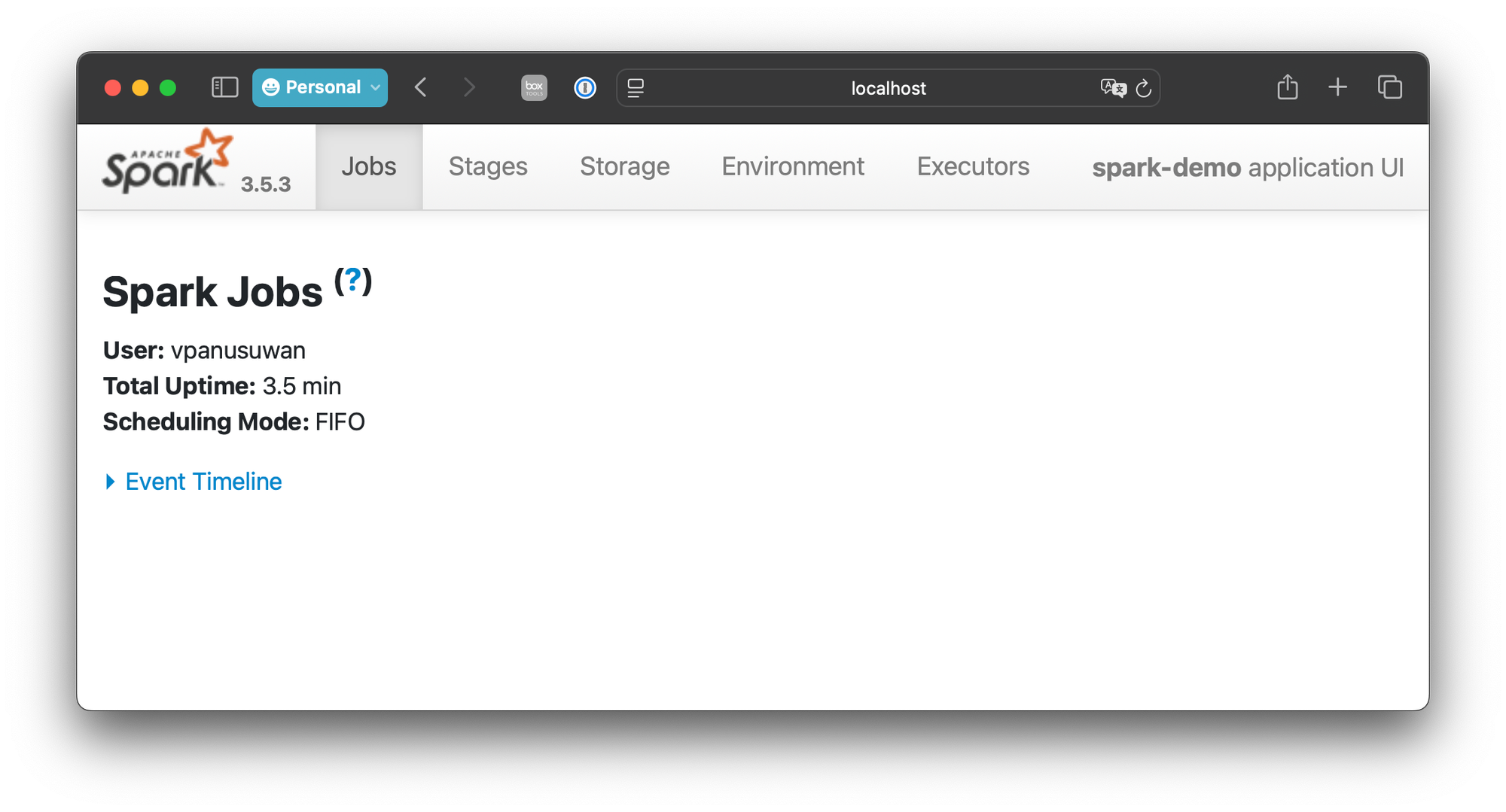
<p>Starting spark this way would create a WebUI at 4040. we can inspect this address by evaluating </p>
<pre><code class="language-`spark.sparkContext.uiWebUrl`.">spark.sparkContext.uiWebUrl</code></pre>
<figure class="kg-card kg-image-card"><img src="/assets/images/ghost/2024/12/Screenshot-2024-12-02-at-5.47.31-AM.png" class="kg-image" alt="" loading="lazy" width="2000" height="1079" srcset="/assets/images/ghost/size/w600/2024/12/Screenshot-2024-12-02-at-5.47.31-AM.png 600w, /assets/images/ghost/size/w1000/2024/12/Screenshot-2024-12-02-at-5.47.31-AM.png 1000w, /assets/images/ghost/size/w1600/2024/12/Screenshot-2024-12-02-at-5.47.31-AM.png 1600w, /assets/images/ghost/2024/12/Screenshot-2024-12-02-at-5.47.31-AM.png 2000w" sizes="(min-width: 720px) 720px" /></figure>
<h3 id="local-iceberg-table">Local Iceberg Table</h3>
<p>For a short experimentation with Local Iceberg table, we can configure sparks to store metadata in a local file. The example below shows how we could setup a catalog named <code>local</code> , where the data files are stored at <code>$PWD/warehouse</code></p>
<pre><code class="language-python">import os
cwd = os.getcwd()

spark = SparkSession.builder \
      .master("local[*]") \
      .appName("spark-demo") \
      .config(map={
          "spark.jars.packages": "org.apache.iceberg:iceberg-spark-runtime-3.5_2.12:1.7.0",          
          "spark.sql.extensions": "org.apache.iceberg.spark.extensions.IcebergSparkSessionExtensions",

          "spark.sql.catalog.local": "org.apache.iceberg.spark.SparkSessionCatalog",
          "spark.sql.catalog.local.type": "hive",
          "spark.sql.catalog.local": "org.apache.iceberg.spark.SparkCatalog",
          "spark.sql.catalog.local.type": "hadoop",
          "spark.sql.catalog.local.warehouse": f"{cwd}/warehouse",
      }) \
      .getOrCreate()</code></pre>
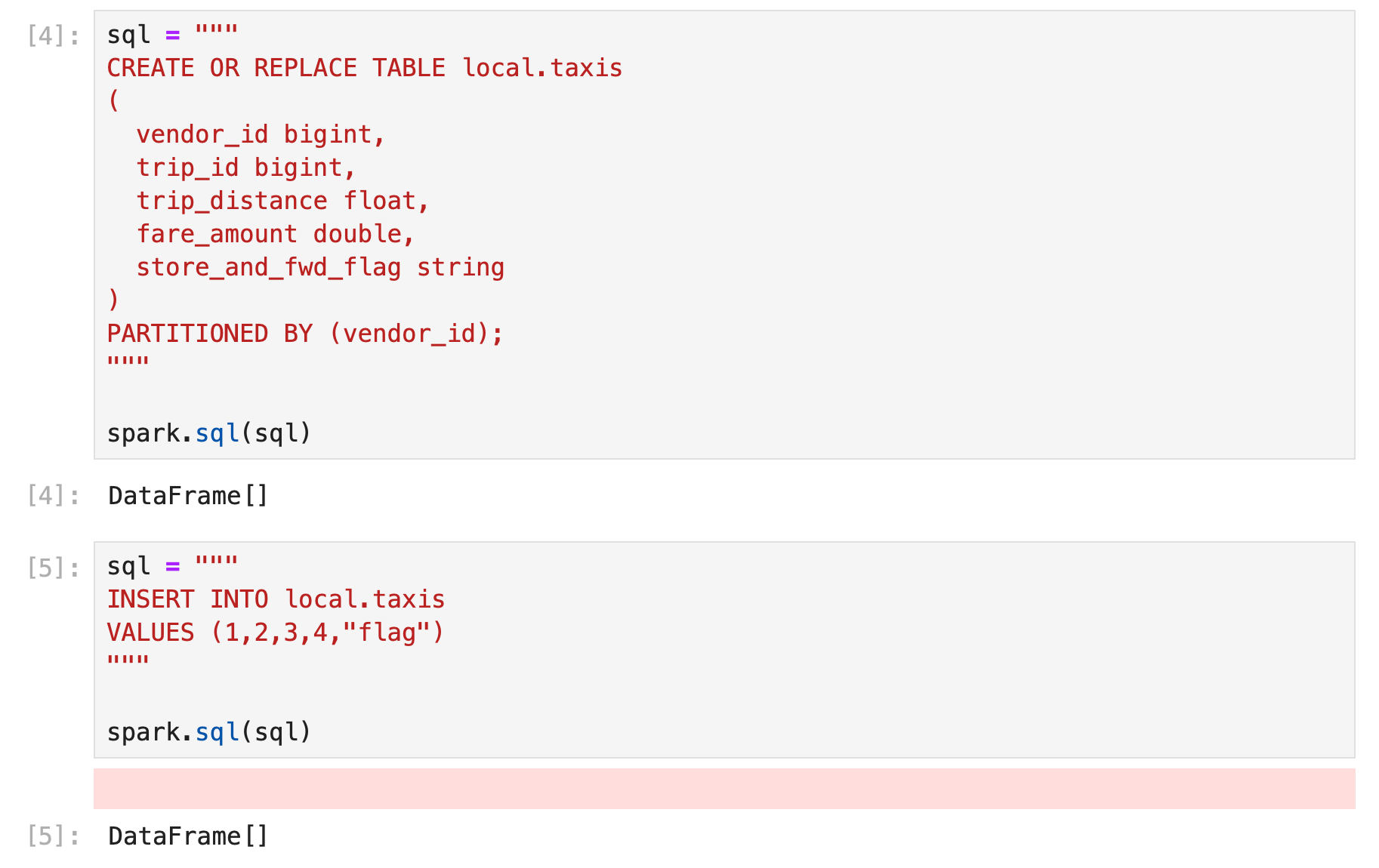
<p>after  setting up spark session, we can create and use the iceberg tables from pyspark. </p>
<figure class="kg-card kg-image-card"><img src="/assets/images/ghost/2024/12/Screenshot-2024-12-02-at-5.56.05-AM.png" class="kg-image" alt="" loading="lazy" width="1826" height="1150" srcset="/assets/images/ghost/size/w600/2024/12/Screenshot-2024-12-02-at-5.56.05-AM.png 600w, /assets/images/ghost/size/w1000/2024/12/Screenshot-2024-12-02-at-5.56.05-AM.png 1000w, /assets/images/ghost/size/w1600/2024/12/Screenshot-2024-12-02-at-5.56.05-AM.png 1600w, /assets/images/ghost/2024/12/Screenshot-2024-12-02-at-5.56.05-AM.png 1826w" sizes="(min-width: 720px) 720px" /></figure>
<figure class="kg-card kg-image-card"><img src="/assets/images/ghost/2024/12/Screenshot-2024-12-02-at-5.56.15-AM.png" class="kg-image" alt="" loading="lazy" width="1848" height="554" srcset="/assets/images/ghost/size/w600/2024/12/Screenshot-2024-12-02-at-5.56.15-AM.png 600w, /assets/images/ghost/size/w1000/2024/12/Screenshot-2024-12-02-at-5.56.15-AM.png 1000w, /assets/images/ghost/size/w1600/2024/12/Screenshot-2024-12-02-at-5.56.15-AM.png 1600w, /assets/images/ghost/2024/12/Screenshot-2024-12-02-at-5.56.15-AM.png 1848w" sizes="(min-width: 720px) 720px" /></figure>
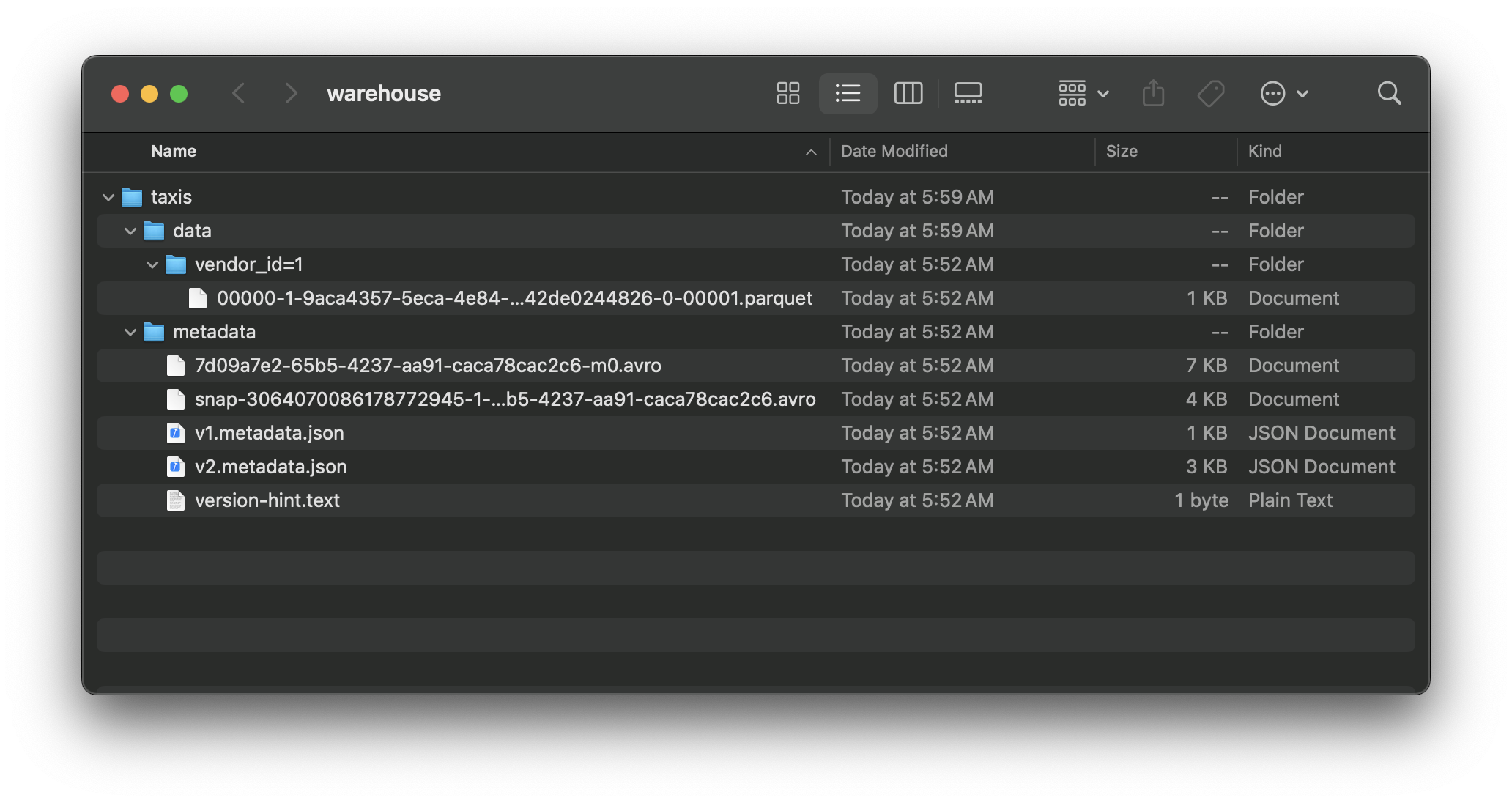
<p>Data will be written to designated directory</p>
<figure class="kg-card kg-image-card"><img src="/assets/images/ghost/2024/12/Screenshot-2024-12-02-at-5.59.23-AM.png" class="kg-image" alt="" loading="lazy" width="2000" height="1062" srcset="/assets/images/ghost/size/w600/2024/12/Screenshot-2024-12-02-at-5.59.23-AM.png 600w, /assets/images/ghost/size/w1000/2024/12/Screenshot-2024-12-02-at-5.59.23-AM.png 1000w, /assets/images/ghost/size/w1600/2024/12/Screenshot-2024-12-02-at-5.59.23-AM.png 1600w, /assets/images/ghost/2024/12/Screenshot-2024-12-02-at-5.59.23-AM.png 2064w" sizes="(min-width: 720px) 720px" /></figure>]]></content><author><name>Varokas Panusuwan</name></author><summary type="html"><![CDATA[EMR presents a convenient method for rapidly deploying a cluster. However, we frequently require an ability to explore locally stored data rapidly. This guide walktlhoughts setting up a minimal local spark cluster fit for stated purpose. The completed project can be found here. GitHub - varokas/spark-demoContribute to varokas/spark-demo development by creating an account on GitHub.GitHubvarokas PySparkJupyter Notebook connecting to PysparkWriting Iceberg Table LocallyWriting Iceberg Table to AWS (TBD)Reading Parquet files from AWS (TBD) PySpark Install Java and Sparks via SDK Man. $ curl -s "https://get.sdkman.io" | bash]]></summary></entry><entry><title type="html">UV - Poetry Replacement</title><link href="https://www.varokas.com/uv/" rel="alternate" type="text/html" title="UV - Poetry Replacement" /><published>2024-08-24T07:08:19+07:00</published><updated>2024-08-24T07:08:19+07:00</updated><id>https://www.varokas.com/uv</id><content type="html" xml:base="https://www.varokas.com/uv/"><![CDATA[<p>UV is an extremely fast dependencies and project manager. It has roughly equivalent in functionality with <a href="https://python-poetry.org" rel="noreferrer">Poetry</a>, but is much faster.  </p>
<h2 id="installing">Installing</h2>
<pre><code class="language-bash">$ curl -LsSf https://astral.sh/uv/install.sh | sh
</code></pre>
<h2 id="new-project">New Project</h2>
<p>Uses <code>uv init</code> to initialize a project with <code>pyproject.toml</code> configuration file. Use <code>uv add</code> to add new dependencies.</p>
<pre><code class="language-bash">$ uv init example-project
Initialized project `example-project` at `/Users/vpanusuwan/projects/example-project`

$ cd example-project

$ uv add pandas
Using Python 3.9.6 interpreter at: /usr/local/bin/python3

Creating virtualenv at: .venv

Resolved **7 packages** in 78ms

&nbsp;&nbsp; **Built** example-project @ file:///Users/vpanusuwan/projects/example-project

Prepared **7 packages** in 724ms

Installed **7 packages** in 161ms

&nbsp;+ **example-project**==0.1.0 (from file:///Users/vpanusuwan/projects/example-project)

&nbsp;+ **numpy**==2.0.1

&nbsp;+ **pandas**==2.2.2

&nbsp;+ **python-dateutil**==2.9.0.post0

&nbsp;+ **pytz**==2024.1

&nbsp;+ **six**==1.16.0

&nbsp;+ **tzdata**==2024.1
</code></pre>
<h2 id="run-project">Run Project</h2>
<p>Using <code>uv run</code> is similar to <code>poetry run</code>, where the code is executed from within the project</p>
<pre><code>uv run app.py
</code></pre>
<h2 id="visual-studio-code-integration">Visual studio Code Integration</h2>
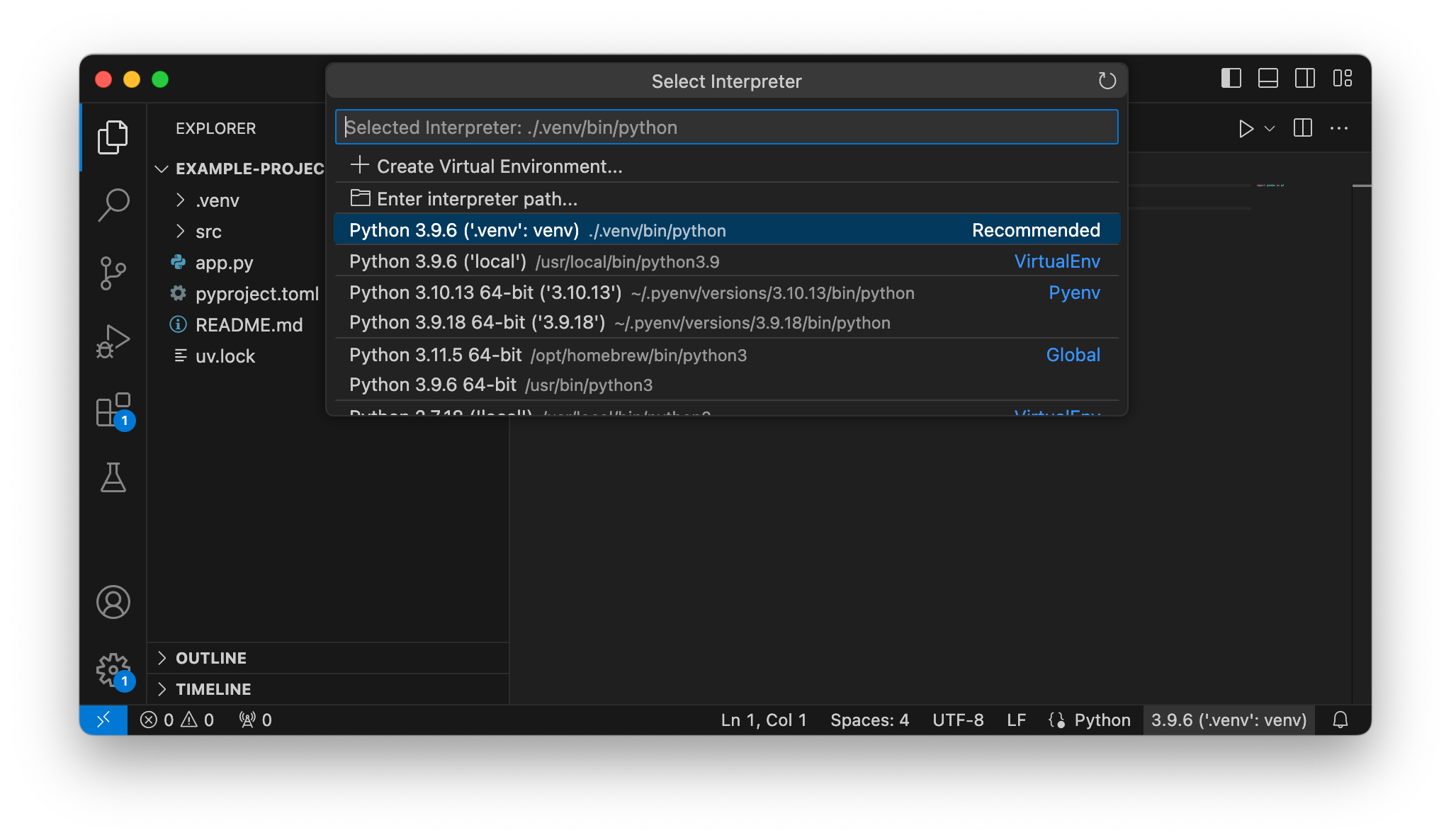
<p>VSCode should automatically picks up the environment in <code>.venv</code> . If not, uses the environment selector on the bottom right corner to do so.</p>
<figure class="kg-card kg-image-card"><img src="/assets/images/ghost/2024/08/Screenshot-2024-08-23-at-5.04.27-PM.png" class="kg-image" alt="" loading="lazy" width="2000" height="1158" srcset="/assets/images/ghost/size/w600/2024/08/Screenshot-2024-08-23-at-5.04.27-PM.png 600w, /assets/images/ghost/size/w1000/2024/08/Screenshot-2024-08-23-at-5.04.27-PM.png 1000w, /assets/images/ghost/size/w1600/2024/08/Screenshot-2024-08-23-at-5.04.27-PM.png 1600w, /assets/images/ghost/2024/08/Screenshot-2024-08-23-at-5.04.27-PM.png 2048w" sizes="(min-width: 720px) 720px" /></figure>]]></content><author><name>Varokas Panusuwan</name></author><summary type="html"><![CDATA[UV is an extremely fast dependencies and project manager. It has roughly equivalent in functionality with Poetry, but is much faster. Installing $ curl -LsSf https://astral.sh/uv/install.sh | sh New Project Uses uv init to initialize a project with pyproject.toml configuration file. Use uv add to add new dependencies. $ uv init example-project Initialized project `example-project` at `/Users/vpanusuwan/projects/example-project`]]></summary></entry><entry><title type="html">Using Tensorflow and Keras on M1 Macs</title><link href="https://www.varokas.com/tensorflow-on-apple-silicon/" rel="alternate" type="text/html" title="Using Tensorflow and Keras on M1 Macs" /><published>2021-10-30T12:03:28+07:00</published><updated>2021-10-30T12:03:28+07:00</updated><id>https://www.varokas.com/tensorflow-on-apple-silicon</id><content type="html" xml:base="https://www.varokas.com/tensorflow-on-apple-silicon/"><![CDATA[<p></p>
<p>Following the instruction here <a href="https://developer.apple.com/metal/tensorflow-plugin/">Tensorflow Plugin - Metal - Apple Developer</a></p>
<h3 id="python-miniforge-">Python (Miniforge)</h3>
<p>First, we need to install miniforge. Easiest way to do that is to use <a href="https://github.com/pyenv/pyenv">pyenv</a>. The tool allow us to install multiple version of pythons. More importantly, we can specify a version of python needed for each folder. Much more convinient than keep switching global versions</p>
<pre><code class="language-bash">pyenv install miniforge3

mkdir demo-tensorflow-metal
pyenv local miniforge3</code></pre>
<h3 id="install-tensorflow-and-it-dependencies">Install Tensorflow and it dependencies</h3>
<pre><code class="language-bash">conda install -c apple tensorflow-deps

python -m pip install tensorflow-macos
python -m pip install tensorflow-metal</code></pre>
<h3 id="install-and-run-jupyter">Install and Run Jupyter</h3>
<pre><code class="language-bash">conda install jupyterlab

jupyter lab</code></pre>
<h3 id="try-mnist-demo">Try MNIST demo</h3>
<p>Simply follow along with <a href="https://keras.io/examples/vision/mnist_convnet/">Keras MNIST Demo</a></p>
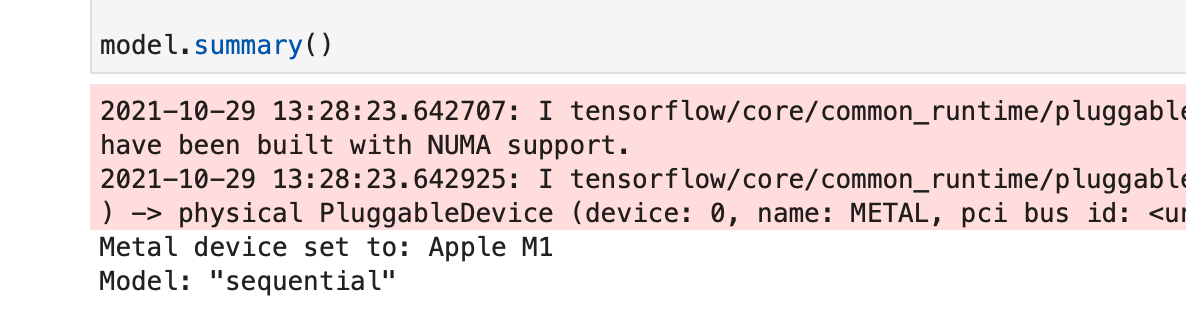
<p>If everything is set up correctly, we should see that Metal Device is set to M1</p>
<figure class="kg-card kg-image-card"><img src="/assets/images/ghost/2021/10/Screen-Shot-2021-10-29-at-9.55.56-PM.png" class="kg-image" alt="" loading="lazy" width="1186" height="318" srcset="/assets/images/ghost/size/w600/2021/10/Screen-Shot-2021-10-29-at-9.55.56-PM.png 600w, /assets/images/ghost/size/w1000/2021/10/Screen-Shot-2021-10-29-at-9.55.56-PM.png 1000w, /assets/images/ghost/2021/10/Screen-Shot-2021-10-29-at-9.55.56-PM.png 1186w" sizes="(min-width: 720px) 720px" /></figure>
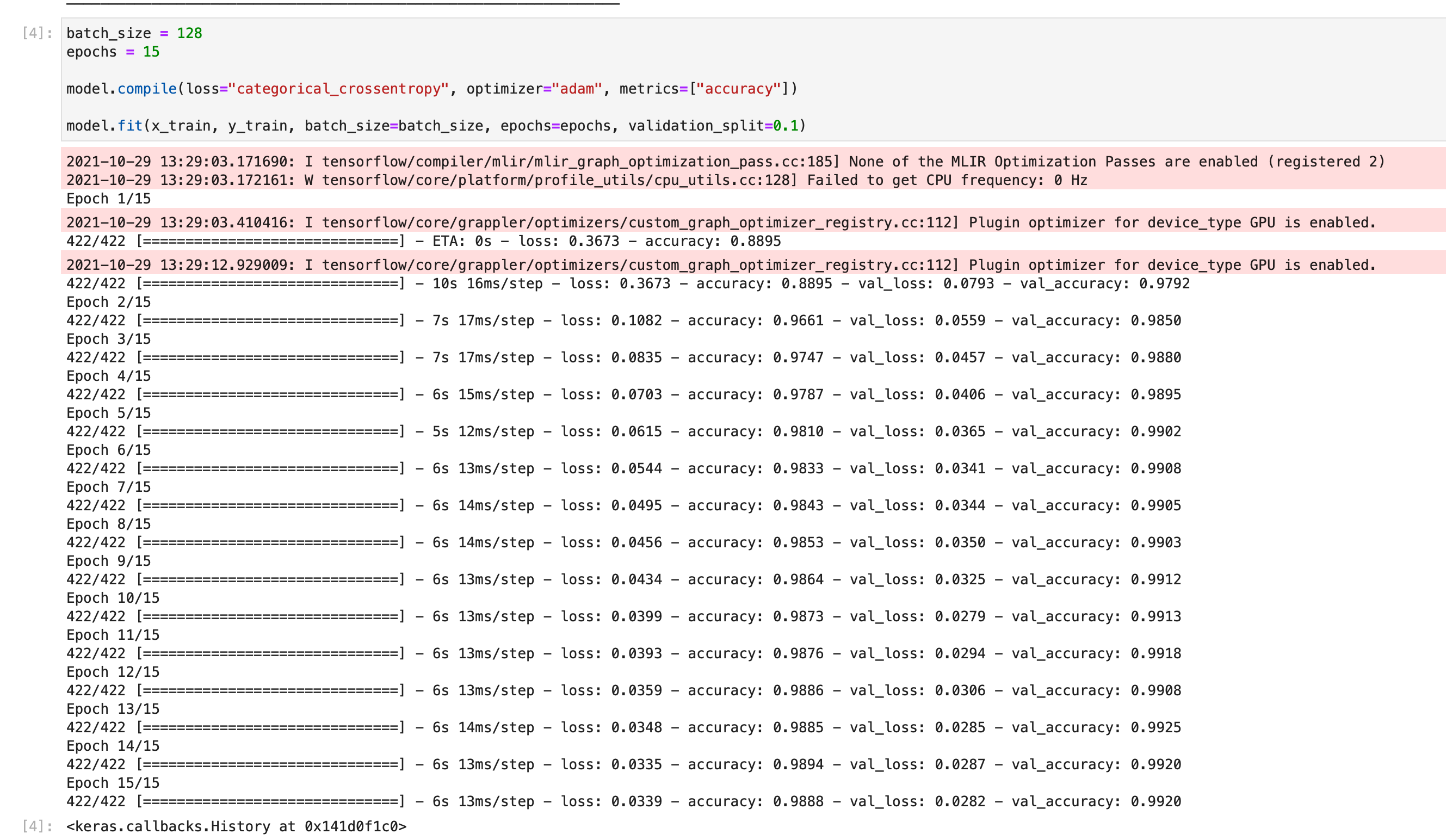
<p>Quite impressive performance from a fanless Macbook Air !</p>
<figure class="kg-card kg-image-card"><img src="/assets/images/ghost/2021/10/Screen-Shot-2021-10-29-at-9.56.23-PM.png" class="kg-image" alt="" loading="lazy" width="2000" height="1162" srcset="/assets/images/ghost/size/w600/2021/10/Screen-Shot-2021-10-29-at-9.56.23-PM.png 600w, /assets/images/ghost/size/w1000/2021/10/Screen-Shot-2021-10-29-at-9.56.23-PM.png 1000w, /assets/images/ghost/size/w1600/2021/10/Screen-Shot-2021-10-29-at-9.56.23-PM.png 1600w, /assets/images/ghost/size/w2400/2021/10/Screen-Shot-2021-10-29-at-9.56.23-PM.png 2400w" sizes="(min-width: 720px) 720px" /></figure>
<figure class="kg-card kg-bookmark-card"><a class="kg-bookmark-container" href="https://github.com/varokas/demo-tensorflow-metal/blob/main/mnist.ipynb"><div class="kg-bookmark-content"><div class="kg-bookmark-title">demo-tensorflow-metal/mnist.ipynb at main · varokas/demo-tensorflow-metal</div><div class="kg-bookmark-description">Contribute to varokas/demo-tensorflow-metal development by creating an account on GitHub.</div><div class="kg-bookmark-metadata"><img class="kg-bookmark-icon" src="https://github.githubassets.com/favicons/favicon.svg" alt="" /><span class="kg-bookmark-author">GitHub</span><span class="kg-bookmark-publisher">varokas</span></div></div><div class="kg-bookmark-thumbnail"><img src="https://opengraph.githubassets.com/f45aceb1790981163dd54ca23ead4ac8b64735313f5c2ef12dad2d7437592778/varokas/demo-tensorflow-metal" alt="" /></div></a></figure>
<h3 id="references">References</h3>
<ul><li><a href="https://developer.apple.com/metal/tensorflow-plugin/">Tensorflow Plugin - Metal - Apple Developer</a></li><li><a href="https://keras.io/examples/vision/mnist_convnet/">Simple MNIST convnet</a></li></ul>]]></content><author><name>Varokas Panusuwan</name></author><summary type="html"><![CDATA[Following the instruction here Tensorflow Plugin - Metal - Apple Developer Python (Miniforge) First, we need to install miniforge. Easiest way to do that is to use pyenv. The tool allow us to install multiple version of pythons. More importantly, we can specify a version of python needed for each folder. Much more convinient than keep switching global versions pyenv install miniforge3]]></summary></entry><entry><title type="html">Living with M1 Mac</title><link href="https://www.varokas.com/living-with-m1/" rel="alternate" type="text/html" title="Living with M1 Mac" /><published>2021-02-01T16:41:51+07:00</published><updated>2021-02-01T16:41:51+07:00</updated><id>https://www.varokas.com/living-with-m1</id><content type="html" xml:base="https://www.varokas.com/living-with-m1/"><![CDATA[<p>These are my current account of roadblocks and workaround in using the tools I frequent within Apple Silicon Mac. Mostly I'll try my best to make native works before falling back to using rosetta.</p>
<p>I'll keep this page updated as things improves. I'll note the PR waiting on the fix if applicable</p>
<h3 id="brew">Brew</h3>
<p>(Brew Mostly works now)</p>
<h3 id="java">Java</h3>
<p>Many things in this category.</p>
<p><strong>SDKMan</strong> – The gateway to Java installation. To install the Azul native M1 JDK, change the flag <code>sdkman_rosetta2_compatbile=true</code> in <code>.sdkman/etc/config</code>. The JDK will then Shows up </p>
<p><strong>IntelliJ</strong> - Just Works!</p>
<p><strong>Gradle - </strong>Works, but the output fallback to legacy mode. Fixed in <a href="https://github.com/gradle/gradle/pull/15612">7.0 nightly</a></p>
<p><strong>Java Packages with Native Extensions </strong>- E.g. Netty using NIO. They provides an Arm binary, but you'd need to grab the latest versions</p>
<h3 id="python">Python</h3>
<p><strong>PyEnv</strong> - Works. Preferred way to install Python anyway. <a href="https://www.python.org/downloads/release/python-391/">Python 3.9.1</a>, which is the official version supporting Apple Silicon compiles and works. 3.8.6 does not work though.</p>
<p><strong>Data Science Libs </strong>- NumPy, a foundation package of anything data science, would not install via Pip. A fix is in the unreleased <a href="https://github.com/numpy/numpy/issues/17807">Numpy 1.20</a>. The workaround is to install MiniForce (Miniconda) which provides a precompiled version of the libs. Then we can use <code>conda install numpy</code> for now.</p>
<pre><code class="language-bash">pyenv install miniforge3-4.9

conda install pandas</code></pre>
<h3 id="docker">Docker</h3>
<p><a href="https://docs.docker.com/docker-for-mac/apple-m1/">(</a>Mostly works now)</p>
<p>Keep in mind that while most popular projects provides an <code>arm64</code>  images, many doesn't. Docker will run the <code>x64</code> images under <code>qemu</code> emulation and is much much slower. If you have a precompiled images you use and share with your team. You may need to build another one </p>
<p>It is possible to use <a href="https://docs.docker.com/buildx/working-with-buildx/">buildx</a> to cross build arm64 docker image from Intel machines. This is very useful for CI. I may do a separate blog for this.</p>
<h3 id="terraform">Terraform</h3>
<p><a href="https://docs.docker.com/docker-for-mac/apple-m1/">(</a>Mostly works now)</p>
<h3 id="misc-things-that-just-works">Misc Things that Just Works</h3>
<p>These can be install normally via brew</p>
<ul><li>XCode – Works very very well. Faster than any Macs you've run it on.</li><li>Fish Shell </li><li>GoLang – v1.16 beta for now</li><li>iTerm2</li><li>Visual Studio Code</li><li>1Password</li><li>NodeJS - Works </li></ul>
<h3 id="things-to-try-don-t-work-yet">Things to Try / Don't work yet</h3>
<ul><li>Haskell - <a href="https://gitlab.haskell.org/ghc/ghc/-/issues/18664">https://gitlab.haskell.org/ghc/ghc/-/issues/18664</a></li></ul>]]></content><author><name>Varokas Panusuwan</name></author><summary type="html"><![CDATA[These are my current account of roadblocks and workaround in using the tools I frequent within Apple Silicon Mac. Mostly I'll try my best to make native works before falling back to using rosetta. I'll keep this page updated as things improves. I'll note the PR waiting on the fix if applicable Brew (Brew Mostly works now) Java Many things in this category. SDKMan – The gateway to Java installation. To install the Azul native M1 JDK, change the flag sdkman_rosetta2_compatbile=true in .sdkman/etc/config. The JDK will then Shows up IntelliJ - Just Works! Gradle - Works, but the output fallback to legacy mode. Fixed in 7.0 nightly Java Packages with Native Extensions - E.g. Netty using NIO. They provides an Arm binary, but you'd need to grab the latest versions Python PyEnv - Works. Preferred way to install Python anyway. Python 3.9.1, which is the official version supporting Apple Silicon compiles and works. 3.8.6 does not work though. Data Science Libs - NumPy, a foundation package of anything data science, would not install via Pip. A fix is in the unreleased Numpy 1.20. The workaround is to install MiniForce (Miniconda) which provides a precompiled version of the libs. Then we can use conda install numpy for now. pyenv install miniforge3-4.9]]></summary></entry><entry><title type="html">AWS Lambda Function from Docker Image</title><link href="https://www.varokas.com/aws-lambda-docker/" rel="alternate" type="text/html" title="AWS Lambda Function from Docker Image" /><published>2021-01-11T17:12:10+07:00</published><updated>2021-01-11T17:12:10+07:00</updated><id>https://www.varokas.com/aws-lambda-docker</id><content type="html" xml:base="https://www.varokas.com/aws-lambda-docker/"><![CDATA[<p>Since Dec 1, 2020, AWS Lambda allow developers to uses any docker images to be executed as lambda functions. This obviously bring tons of benefits and conveniences. </p>
<figure class="kg-card kg-bookmark-card"><a class="kg-bookmark-container" href="https://aws.amazon.com/blogs/aws/new-for-aws-lambda-container-image-support/"><div class="kg-bookmark-content"><div class="kg-bookmark-title">New for AWS Lambda – Container Image Support | Amazon Web Services</div><div class="kg-bookmark-description">With AWS Lambda, you upload your code and run it without thinking about servers. Many customers enjoy the way this works, but if you’ve invested in container tooling for your development workflows, it’s not easy to use the same approach to build applications using Lambda. To help you with that, you …</div><div class="kg-bookmark-metadata"><img class="kg-bookmark-icon" src="https://a0.awsstatic.com/main/images/site/touch-icon-ipad-144-smile.png" alt="" /><span class="kg-bookmark-author">Amazon Web Services</span><span class="kg-bookmark-publisher">Danilo Poccia</span></div></div><div class="kg-bookmark-thumbnail"><img src="https://d2908q01vomqb2.cloudfront.net/da4b9237bacccdf19c0760cab7aec4a8359010b0/2020/11/25/Site-Merch_AWS-Lambda_container-image-support_SocialMedia_1-1.png" alt="" /></div></a></figure>
<p>To me, three most compelling reasons are:</p>
<p><strong>Simplified Dependencies Management. </strong>No longer needed to pack dependencies in zip file. This was especially annoying for <a href="https://docs.aws.amazon.com/lambda/latest/dg/java-package.html">Java</a> and <a href="https://docs.aws.amazon.com/lambda/latest/dg/python-package.html">Python</a>. </p>
<p><strong>Better Local Testing</strong> . Since this is docker based. The code we run on our machine is <strong>exactly </strong>the same running in AWS. Say – If a role and permission is misconfigured, the function blows up locally rather than later in prod.  </p>
<p><strong>Greater Size Limit. </strong>Instead of <a href="https://docs.aws.amazon.com/lambda/latest/dg/gettingstarted-limits.html">50MB zip file limit</a>, Lambda allows for up to 10GB container image size. This is great news for Data Scientist around the world deploying their 500MB+ models. </p>
<h3 id="steps">Steps</h3>
<ol><li>Create a docker image that can be run on lambda</li><li>Upload to Amazon <a href="https://aws.amazon.com/ecr/">ECR</a> </li><li>Create Function</li></ol>
<p>The follow steps shows detail for Python. </p>
<h3 id="find-a-base-image">Find a base image</h3>
<p>We could use <a href="https://aws.amazon.com/blogs/aws/new-for-aws-lambda-container-image-support/">any correctly created custom images</a>. It is far easier to based off  Amazon provided images. We will end up with images that behaves very close to how AWS runs in production today when deploying <code>zip</code> file. (CloudWatch Logging and metrics exported and all).</p>
<figure class="kg-card kg-bookmark-card"><a class="kg-bookmark-container" href="https://docs.aws.amazon.com/lambda/latest/dg/python-image.html#python-image-base"><div class="kg-bookmark-content"><div class="kg-bookmark-title">Deploy Python Lambda functions with container images - AWS Lambda</div><div class="kg-bookmark-description">Deploy your Python Lambda function code as a container image using an AWS provided base image or the runtime interface client.</div><div class="kg-bookmark-metadata"><img class="kg-bookmark-icon" src="https://docs.aws.amazon.com/assets/images/favicon.ico" alt="" /><span class="kg-bookmark-author">AWS Lambda</span></div></div></a></figure>
<h3 id="create-a-custom-image">Create a custom image</h3>
<p>First, Create the app code (app.py). This should looks exactly like a normal lambda function. We'd need a handler function which accepts an <code>event</code> and lambda <code>context</code>, returning function result.</p>
<figure class="kg-card kg-code-card"><pre><code class="language-python">def handler(event, context):
    return {"hello":"world"}</code></pre><figcaption>app.py</figcaption></figure>
<p>Copy the function into our docker image. Run the function with <code>&lt;file_name&gt;.&lt;function_name&gt;</code> in <code>CMD</code>.</p>
<figure class="kg-card kg-code-card"><pre><code>FROM public.ecr.aws/lambda/python:3.8

COPY app.py ./
CMD ["app.handler"]      </code></pre><figcaption>Dockerfile</figcaption></figure>
<p>Build our image</p>
<pre><code class="language-bash">$ docker build . -t lambda-docker-python</code></pre>
<h3 id="running-and-testing">Running and Testing</h3>
<p>These steps should be very familiar to anybody who has been using docker.</p>
<pre><code class="language-bash">docker run -p 9000:8080 lambda-docker-python:latest</code></pre>
<p>Now we could invoke our functions using curl. Per <a href="https://github.com/aws/aws-lambda-python-runtime-interface-client/">Lambda Runtime Interface Client</a> library doc, the correct route to the deployed handler is <code>/2015-03-31/functions/function/invocations</code> . (Not sure why they impose this convention though – but you'll get 404 otherwise). </p>
<p>This means we could invoke our function by this curl</p>
<pre><code class="language-bash">$ curl -XPOST "http://localhost:9000/2015-03-31/functions/function/invocations" -d '{}'
{"hello": "world"}

### If we look at docker run logs, we'd see a very familiar lambda logging -- this is great!
..
START RequestId: 826b34b9-498e-4468-9e4c-ffa7db08b050 Version: $LATEST
END RequestId: 826b34b9-498e-4468-9e4c-ffa7db08b050
REPORT RequestId: 826b34b9-498e-4468-9e4c-ffa7db08b050	Init Duration: 0.43 ms	Duration: 165.74 ms	Billed Duration: 200 ms	...
..</code></pre>
<h3 id="adding-dependencies">Adding Dependencies</h3>
<p>In my opinion, this is the most compelling reason to use Docker image based lambda. We do not need to do dependencies packing gymnastics to make it work. We just define and download it like we would in local machine/our docker. </p>
<p>For python, that means creates a <code>requirements.txt</code> and invoke a <code>pip install</code> on the file.</p>
<figure class="kg-card kg-code-card"><pre><code class="language-python">requests==2.25.1</code></pre><figcaption>requirements.txt</figcaption></figure>
<figure class="kg-card kg-code-card"><pre><code>FROM public.ecr.aws/lambda/python:3.8

COPY requirements.txt ./
RUN pip install -r requirements.txt

COPY app.py ./
CMD ["app.handler"]</code></pre><figcaption>modified Dockerfile</figcaption></figure>
<figure class="kg-card kg-code-card"><pre><code class="language-python">import requests

def handler(event, context):
  r = requests.get("https://api.covidtracking.com/v1/us/daily.json")
  j = r.json()

  return [ {"states": r["states"], "positive": r["positive"]} for r in j]
</code></pre><figcaption>modified app.py</figcaption></figure>
<h3 id="create-ecr-repository">Create ECR Repository </h3>
<p>Follow the <a href="https://docs.aws.amazon.com/AmazonECR/latest/userguide/repository-create.html">manual steps</a> or uses CDK. Optionally we may want to keep only last 10 images instead of indefinitely keeps all versions.</p>
<pre><code class="language-python">ecr_repo2 = ecr.Repository(self, "lambda-docker-python", repository_name="lambda-docker-python")
ecr_repo2.add_lifecycle_rule(max_image_count=10)</code></pre>
<p>Note the created repository id, which would be in form of <code>&lt;account&gt;.dkr.ecr.&lt;region&gt;.amazonaws.com/&lt;repo_name&gt;</code>. We need it to login and upload</p>
<h3 id="upload-image-to-ecr">Upload Image to ECR</h3>
<p>First, Logging into ECR requires AWS CLI to obtain password. We can then pipe into docker login. Per instruction <a href="https://docs.aws.amazon.com/AmazonECR/latest/userguide/getting-started-cli.html">here</a>. Replace <code>820792572713</code> with your aws account number.</p>
<pre><code class="language-bash">$ aws ecr get-login-password | docker login --username AWS --password-stdin 820792572713.dkr.ecr.us-west-2.amazonaws.com
Login Succeeded</code></pre>
<p>Then we can tag and upload the image. </p>
<pre><code class="language-bas">$ docker tag lambda-docker-python:latest 820792572713.dkr.ecr.us-west-2.amazonaws.com/lambda-docker-python:latest

$ docker push 820792572713.dkr.ecr.us-west-2.amazonaws.com/lambda-docker-python:latest</code></pre>
<h3 id="create-function">Create Function</h3>
<p>Either create it <a href="https://aws.amazon.com/blogs/aws/new-for-aws-lambda-container-image-support/">manually</a> (the UI is very easy to figure out). </p>
<p>Or hacker-style 😎 in CLI. Creating via CLI requires a lambda role to be created beforehand (which I recommends anyway).</p>
<pre><code class="language-bash">aws lambda create-function \
    --role arn:aws:iam::820792572713:role/fn_lambda_role \
    --function-name lambda-docker-python \
    --package-type Image \
    --code ImageUri=820792572713.dkr.ecr.us-west-2.amazonaws.com/lambda-docker-python:latest</code></pre>
<h3 id="invoke-function">Invoke Function</h3>
<p>Enough set up, let's invoke our function in prod.</p>
<pre><code class="language-bash">$ aws lambda invoke --function-name "lambda-docker-python" /dev/stdout</code></pre>
<p>That's it! </p>
<h3 id="updating-function">Updating Function</h3>
<p>Later on if we have any changes to our function we'd want to </p>
<ol><li>Rebuild docker image</li><li>Re upload docker image</li><li>Update Function</li></ol>
<pre><code class="language-bash">aws lambda update-function-code \
    --function-name lambda-docker-python \
    --image-uri 820792572713.dkr.ecr.us-west-2.amazonaws.com/lambda-docker-python:latest</code></pre>
<p>These are clearly can be automated. The script itself is left as exercise for the readers 😊 . </p>
<p>Find a very minimal sample code in github link below. </p>
<figure class="kg-card kg-bookmark-card"><a class="kg-bookmark-container" href="https://github.com/varokas/lambda-docker-python"><div class="kg-bookmark-content"><div class="kg-bookmark-title">varokas/lambda-docker-python</div><div class="kg-bookmark-description">Contribute to varokas/lambda-docker-python development by creating an account on GitHub.</div><div class="kg-bookmark-metadata"><img class="kg-bookmark-icon" src="https://github.githubassets.com/favicons/favicon.svg" alt="" /><span class="kg-bookmark-author">GitHub</span><span class="kg-bookmark-publisher">varokas</span></div></div><div class="kg-bookmark-thumbnail"><img src="https://avatars2.githubusercontent.com/u/1317078?s&#x3D;400&amp;v&#x3D;4" alt="" /></div></a></figure>
<p> </p>]]></content><author><name>Varokas Panusuwan</name></author><summary type="html"><![CDATA[Since Dec 1, 2020, AWS Lambda allow developers to uses any docker images to be executed as lambda functions. This obviously bring tons of benefits and conveniences. New for AWS Lambda – Container Image Support | Amazon Web ServicesWith AWS Lambda, you upload your code and run it without thinking about servers. Many customers enjoy the way this works, but if you’ve invested in container tooling for your development workflows, it’s not easy to use the same approach to build applications using Lambda. To help you with that, you …Amazon Web ServicesDanilo Poccia To me, three most compelling reasons are: Simplified Dependencies Management. No longer needed to pack dependencies in zip file. This was especially annoying for Java and Python. Better Local Testing . Since this is docker based. The code we run on our machine is exactly the same running in AWS. Say – If a role and permission is misconfigured, the function blows up locally rather than later in prod.   Greater Size Limit. Instead of 50MB zip file limit, Lambda allows for up to 10GB container image size. This is great news for Data Scientist around the world deploying their 500MB+ models. Steps Create a docker image that can be run on lambdaUpload to Amazon ECR Create Function The follow steps shows detail for Python. Find a base image We could use any correctly created custom images. It is far easier to based off  Amazon provided images. We will end up with images that behaves very close to how AWS runs in production today when deploying zip file. (CloudWatch Logging and metrics exported and all). Deploy Python Lambda functions with container images - AWS LambdaDeploy your Python Lambda function code as a container image using an AWS provided base image or the runtime interface client.AWS Lambda Create a custom image First, Create the app code (app.py). This should looks exactly like a normal lambda function. We'd need a handler function which accepts an event and lambda context, returning function result. def handler(event, context): return {"hello":"world"}app.py Copy the function into our docker image. Run the function with &lt;file_name&gt;.&lt;function_name&gt; in CMD. FROM public.ecr.aws/lambda/python:3.8]]></summary></entry><entry><title type="html">AWS Lambda Functions in Scala</title><link href="https://www.varokas.com/aws-lambda-functions-in-scala/" rel="alternate" type="text/html" title="AWS Lambda Functions in Scala" /><published>2021-01-04T18:08:03+07:00</published><updated>2021-01-04T18:08:03+07:00</updated><id>https://www.varokas.com/aws-lambda-functions-in-scala</id><content type="html" xml:base="https://www.varokas.com/aws-lambda-functions-in-scala/"><![CDATA[<h3 id="initialize-scala-project">Initialize Scala Project</h3>
<p>Assuming we are familiar with SBT and have that installed </p>
<pre><code class="language-sh">$ sbt new scala/scala-seed.g8

A minimal Scala project.

name [Scala Seed Project]: Lambda Scala Seed

Template applied in /Users/vpanusuwan/projects/./lambda-scala-seed</code></pre>
<h3 id="add-lambda-library">Add Lambda Library</h3>
<p>The libraries contains event classes which is a typed input for lambda. Check latest version at mvnrepository for <a href="https://mvnrepository.com/artifact/com.amazonaws/aws-lambda-java-core">java-core</a> and <a href="https://mvnrepository.com/artifact/com.amazonaws/aws-lambda-java-events">java-events </a>separately. </p>
<pre><code class="language-scala">    libraryDependencies ++= Seq(
      "com.amazonaws" % "aws-lambda-java-core" % awsLambdaVersion,
      "com.amazonaws" % "aws-lambda-java-events" % awsLambdaEventsVersion,
      scalaTest % Test
    )</code></pre>
<h3 id="create-handler-function">Create handler function</h3>
<p>Create a class with method of any name in any package. The important thing is that the method accepts a lambda event </p>
<pre><code class="language-scala">package example

import com.amazonaws.services.lambda.runtime.Context
import com.amazonaws.services.lambda.runtime.events.{APIGatewayV2HTTPEvent, APIGatewayV2HTTPResponse}

class Main  {
  def handler(apiGatewayEvent: APIGatewayV2HTTPEvent, context: Context): APIGatewayV2HTTPResponse = {
    println(s"body = ${apiGatewayEvent.getBody()}")
    return APIGatewayV2HTTPResponse.builder()
      .withStatusCode(200)
      .withBody("okay")
      .build()
  }
}

</code></pre>
<h3 id="configure-assembly-plugin">Configure Assembly Plugin</h3>
<p>Next is to configure the assembly plugin to produce a single fat jar containing our code and all the dependencies together. See latest version of the plugin at <a href="https://github.com/sbt/sbt-assembly">https://github.com/sbt/sbt-assembly</a> </p>
<p>In <code>project/plugins.sbt</code></p>
<pre><code class="language-scala">addSbtPlugin("com.eed3si9n" % "sbt-assembly" % "0.15.0")
</code></pre>
<p>In <code>build.sbt</code>, configure the fat jar merging strategies. At very minimum we should discard contents in <code>META-INF</code>. Also overrides a jar name.</p>
<pre><code class="language-scala">assemblyJarName in assembly := "lambda-scala-seed.jar"

assemblyMergeStrategy in assembly := {
  case PathList("META-INF", xs @ _*) =&gt; MergeStrategy.discard
  case x =&gt; MergeStrategy.first
}</code></pre>
<h3 id="package">Package </h3>
<pre><code class="language-bash">sbt assembly</code></pre>
<p>Then finds the packaged jar at <code>target/scala-2.13/&lt;jarname&gt;</code></p>
<h3 id="create-function">Create Function</h3>
<p>Install aws cli tool <a href="https://aws.amazon.com/cli/">https://aws.amazon.com/cli/</a>. Uses following commands to deploy / update the function. </p>
<p>First, Lambda needs a role to execute, which should at least have the <code>AWSLambdaBasicExecutionRole</code> <a href="https://console.aws.amazon.com/iam/home?region=us-west-2#/policies/arn:aws:iam::aws:policy/service-role/AWSLambdaBasicExecutionRole$serviceLevelSummary">policy</a> attached. The policy simply enables a write to CloudWatch logs. A cdk snipplet to create such role would be.</p>
<pre><code class="language-python"> lambda_basic_policy = iam.ManagedPolicy.from_aws_managed_policy_name("service-role/AWSLambdaBasicExecutionRole")
 
role = iam.Role(self, "fn_lambda_role", role_name="fn_lambda_role", assumed_by=iam.ServicePrincipal("lambda.amazonaws.com"))
role.add_managed_policy(lambda_basic_policy)</code></pre>
<p>Then we can deploy the jar to lambda </p>
<pre><code class="language-bash">aws lambda create-function \
  --function-name lambda-scala-seed \
  --role "arn:aws:iam::&lt;aws_account_no&gt;:role/fn_lambda_role" \
  --zip fileb://target/scala-2.13/lambda-scala-seed.jar \
  --runtime java11 \
  --memory 256 \
  --handler "example.Main::handler"
</code></pre>
<h3 id="test-function">Test Function</h3>
<pre><code class="language-bash">aws lambda invoke --function-name "lambda-scala-seed" /dev/stdout</code></pre>
<h3 id="update-function">Update Function</h3>
<pre><code class="language-bash"> aws lambda update-function-code \
 --function-name "lambda-scala-seed" \
 --zip fileb://target/scala-2.13/lambda-scala-seed.jar
</code></pre>
<h3 id="references">References</h3>
<ul><li><a href="https://aws.amazon.com/blogs/compute/writing-aws-lambda-functions-in-scala/">https://aws.amazon.com/blogs/compute/writing-aws-lambda-functions-in-scala/</a></li><li>Events Example – <a href="https://github.com/awsdocs/aws-lambda-developer-guide/tree/main/sample-apps/java-events">https://github.com/awsdocs/aws-lambda-developer-guide/tree/main/sample-apps/java-events</a></li></ul>
<h3> </h3>]]></content><author><name>Varokas Panusuwan</name></author><summary type="html"><![CDATA[Initialize Scala Project Assuming we are familiar with SBT and have that installed $ sbt new scala/scala-seed.g8]]></summary></entry><entry><title type="html">Define AWS Infrastructure in Python with AWS Cloud Development Kit</title><link href="https://www.varokas.com/aws-cloud-development-kit/" rel="alternate" type="text/html" title="Define AWS Infrastructure in Python with AWS Cloud Development Kit" /><published>2020-12-30T16:59:15+07:00</published><updated>2020-12-30T16:59:15+07:00</updated><id>https://www.varokas.com/aws-cloud-development-kit</id><content type="html" xml:base="https://www.varokas.com/aws-cloud-development-kit/"><![CDATA[<p>With <a href="https://aws.amazon.com/cdk/">AWS CDK</a>, we can define an infrastructure using familiar languages (Python, JS, Java, etc) . The code will be compiled into a cloud formation JSON and deployed as a cloud formation stack. Later we can diff the changes made before redeploy. </p>
<h3 id="install">Install</h3>
<pre><code class="language-bash">brew install node
npm install -g aws-cdk    </code></pre>
<h3 id="initialize">Initialize</h3>
<pre><code class="language-bash">cdk init app --language python

python3 -m venv .venv
source .venv/bin/activate
python -m pip install -r requirements.txt

pip install aws-cdk.aws-s3 # module to manage s3</code></pre>
<h3 id="define">Define</h3>
<p>Edit <code>{project_name}/{project_name}_stack.py</code> </p>
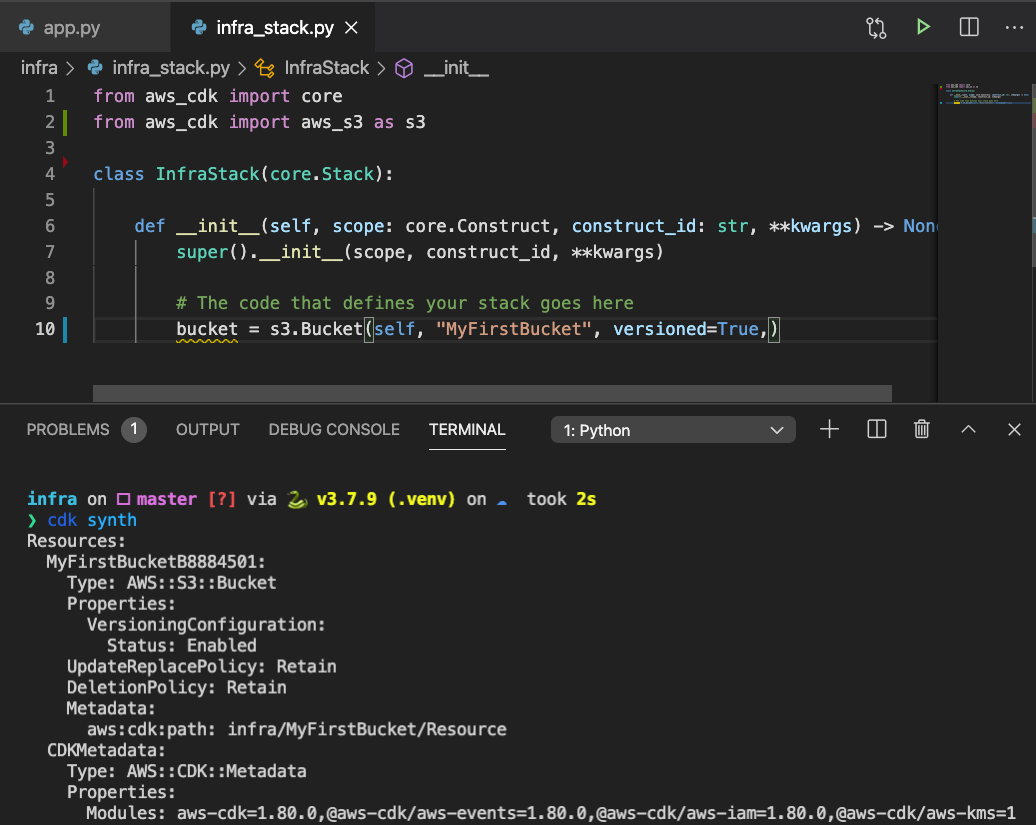
<pre><code class="language-python">from aws_cdk import core
from aws_cdk import aws_s3 as s3


class FnInfraStack(core.Stack):

    def __init__(self, scope: core.Construct, construct_id: str, **kwargs) -&gt; None:
        super().__init__(scope, construct_id, **kwargs)

        s3.bucket(self, "TestingBucketVarokas", versioned=True, )</code></pre>
<p>Preview the cloud formation template with </p>
<pre><code class="language-bash">cdk synth</code></pre>
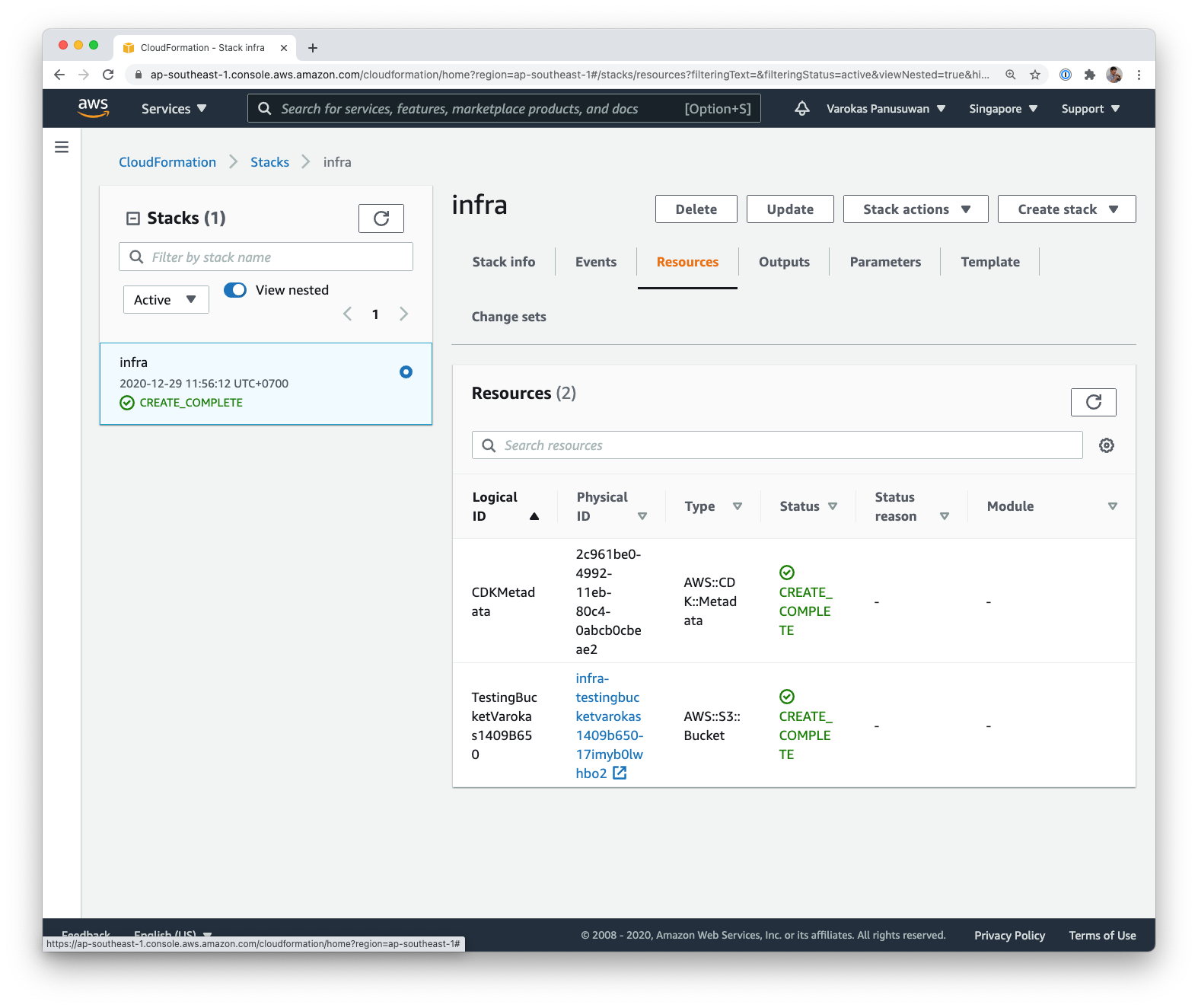
<figure class="kg-card kg-image-card"><img src="/assets/images/ghost/2020/12/Screen-Shot-2020-12-29-at-11.52.22-AM.png" class="kg-image" alt="" loading="lazy" /></figure>
<h3 id="deploy">Deploy</h3>
<p>We can then immediately deploy the changes as CloudFormation stack</p>
<pre><code class="language-bash">cdk --profile varokas deploy</code></pre>
<figure class="kg-card kg-image-card"><img src="/assets/images/ghost/2020/12/Screen-Shot-2020-12-29-at-11.57.59-AM.png" class="kg-image" alt="" loading="lazy" /></figure>
<h3 id="changes-and-diffs">Changes and Diffs</h3>
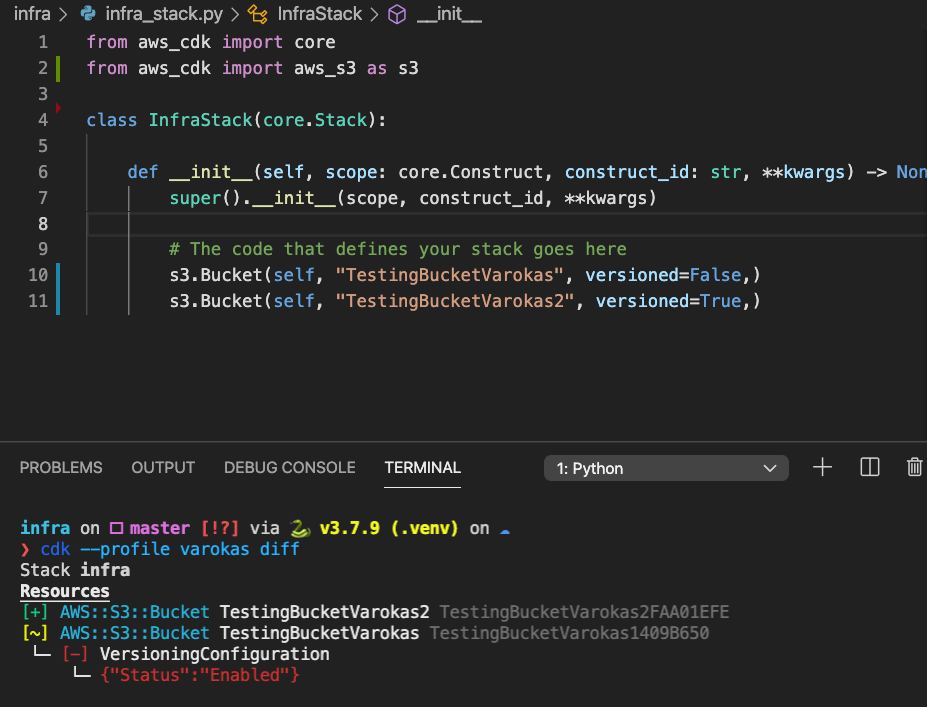
<p>Any changes to the code can be diff-ed against currently deployed stack</p>
<figure class="kg-card kg-image-card"><img src="/assets/images/ghost/2020/12/Screen-Shot-2020-12-29-at-12.05.21-PM.png" class="kg-image" alt="" loading="lazy" /></figure>
<h3 id="limitations">Limitations</h3>
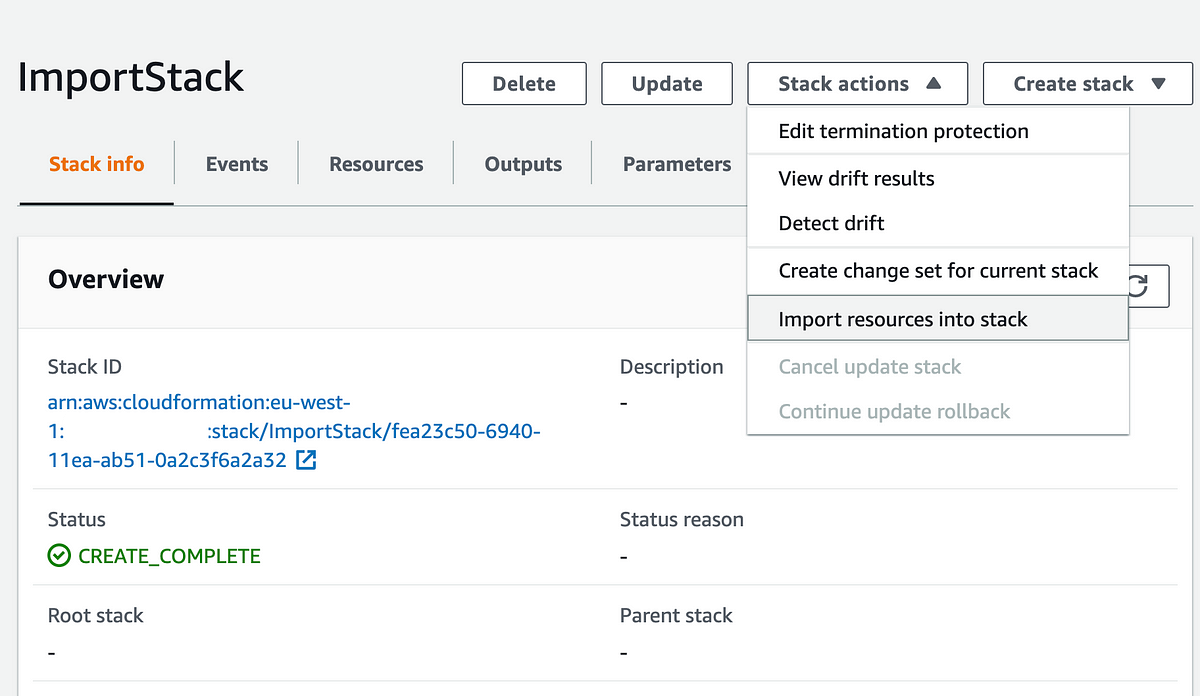
<p>There isn't a way to import existing AWS resources to CDK yet</p>
<figure class="kg-card kg-bookmark-card"><a class="kg-bookmark-container" href="https://github.com/aws/aws-cdk-rfcs/issues/84"><div class="kg-bookmark-content"><div class="kg-bookmark-title">Support importing existing resources into a stack · Issue #84 · aws/aws-cdk-rfcs</div><div class="kg-bookmark-description">Importing existing resources into a CloudFormation stack is now supported! 🎉 The CDK should provide a elegant way to support this. https://aws.amazon.com/blogs/aws/new-import-existing-resources-int...</div><div class="kg-bookmark-metadata"><img class="kg-bookmark-icon" src="https://github.githubassets.com/favicons/favicon.svg" alt="" /><span class="kg-bookmark-author">GitHub</span><span class="kg-bookmark-publisher">aws</span></div></div><div class="kg-bookmark-thumbnail"><img src="https://avatars2.githubusercontent.com/u/2232217?s&#x3D;400&amp;v&#x3D;4" alt="" /></div></a></figure>
<p>A workaround exist by creating a failed CloudFormation deployment and fix the template.</p>
<figure class="kg-card kg-bookmark-card"><a class="kg-bookmark-container" href="https://medium.com/@visya/how-to-import-existing-aws-resources-into-cdk-stack-f1cea491e9"><div class="kg-bookmark-content"><div class="kg-bookmark-title">How to import existing AWS resources into CDK stack</div><div class="kg-bookmark-description">If you are not creating your account from scratch at the same time when you’re starting to work with CDK, you might need to import existing resources to CDK stack to be able to manage them. This is…</div><div class="kg-bookmark-metadata"><img class="kg-bookmark-icon" src="https://miro.medium.com/fit/c/152/152/1*sHhtYhaCe2Uc3IU0IgKwIQ.png" alt="" /><span class="kg-bookmark-author">Medium</span><span class="kg-bookmark-publisher">Maria Verbenko</span></div></div><div class="kg-bookmark-thumbnail"><img src="https://miro.medium.com/max/1200/1*3GcFKUaw0AOPc22SI-BDSg.png" alt="" /></div></a></figure>
<p> </p>
<h3 id="references">References</h3>
<figure class="kg-card kg-bookmark-card"><a class="kg-bookmark-container" href="https://docs.aws.amazon.com/cdk/latest/guide/getting_started.html"><div class="kg-bookmark-content"><div class="kg-bookmark-title">Getting started with the AWS CDK - AWS Cloud Development Kit (AWS CDK)</div><div class="kg-bookmark-description">This topic introduces you to important AWS CDK concepts and describes how to install and configure the AWS CDK.</div><div class="kg-bookmark-metadata"><img class="kg-bookmark-icon" src="https://docs.aws.amazon.com/assets/images/favicon.ico" alt="" /><span class="kg-bookmark-author">AWS Cloud Development Kit (AWS CDK)</span></div></div></a></figure>
<p></p>]]></content><author><name>Varokas Panusuwan</name></author><summary type="html"><![CDATA[With AWS CDK, we can define an infrastructure using familiar languages (Python, JS, Java, etc) . The code will be compiled into a cloud formation JSON and deployed as a cloud formation stack. Later we can diff the changes made before redeploy. Install brew install node npm install -g aws-cdk Initialize cdk init app --language python]]></summary></entry><entry><title type="html">Algorithms: Sorting</title><link href="https://www.varokas.com/sorting-algorithms/" rel="alternate" type="text/html" title="Algorithms: Sorting" /><published>2020-12-30T15:38:19+07:00</published><updated>2020-12-30T15:38:19+07:00</updated><id>https://www.varokas.com/sorting-algorithms</id><content type="html" xml:base="https://www.varokas.com/sorting-algorithms/"><![CDATA[<p>High level review of classic sorting algorithms with Haskell. </p>
<h3 id="what-do-we-mean-by-sorted">What do we mean by Sorted?</h3>
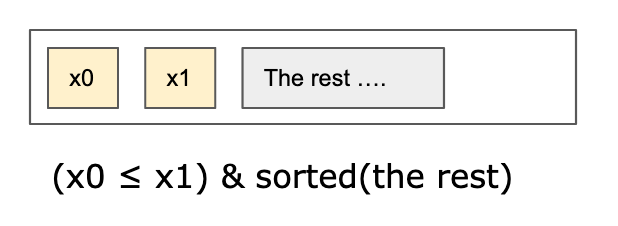
<p>For a sorted list, every element is smaller or equals to the next one. From this very definition we can check if a list is sorted by</p>
<ol><li>Checking that the first element is less than or equal to the next one</li><li>Recursively check that the rest is sorted </li></ol>
<figure class="kg-card kg-image-card"><img src="/assets/images/ghost/2020/12/Screen-Shot-2020-12-05-at-6.55.56-AM.png" class="kg-image" alt="" loading="lazy" /></figure>
<pre><code class="language-hs">isSorted [] = True
isSorted [x] = True
isSorted (x0:x1:xs) = (x0 &lt;= x1) &amp;&amp; isSorted(x1:xs)</code></pre>
<h3 id="recursive-sorting-algorithms">Recursive Sorting algorithms</h3>
<p>These sorting algorithms divide the given list into 2 subproblems of roughly the same size. There are two prominent algorithms in this category.</p>
<ul><li><strong>Merge sort </strong>- uses a linear time algorithm to combine the two sorted lists</li><li><strong>Quick sort </strong>- uses a linear time algorithm to partition values into left (less than) and right (more than) a pivot. </li></ul>
<h3 id="merge-sort">Merge Sort</h3>
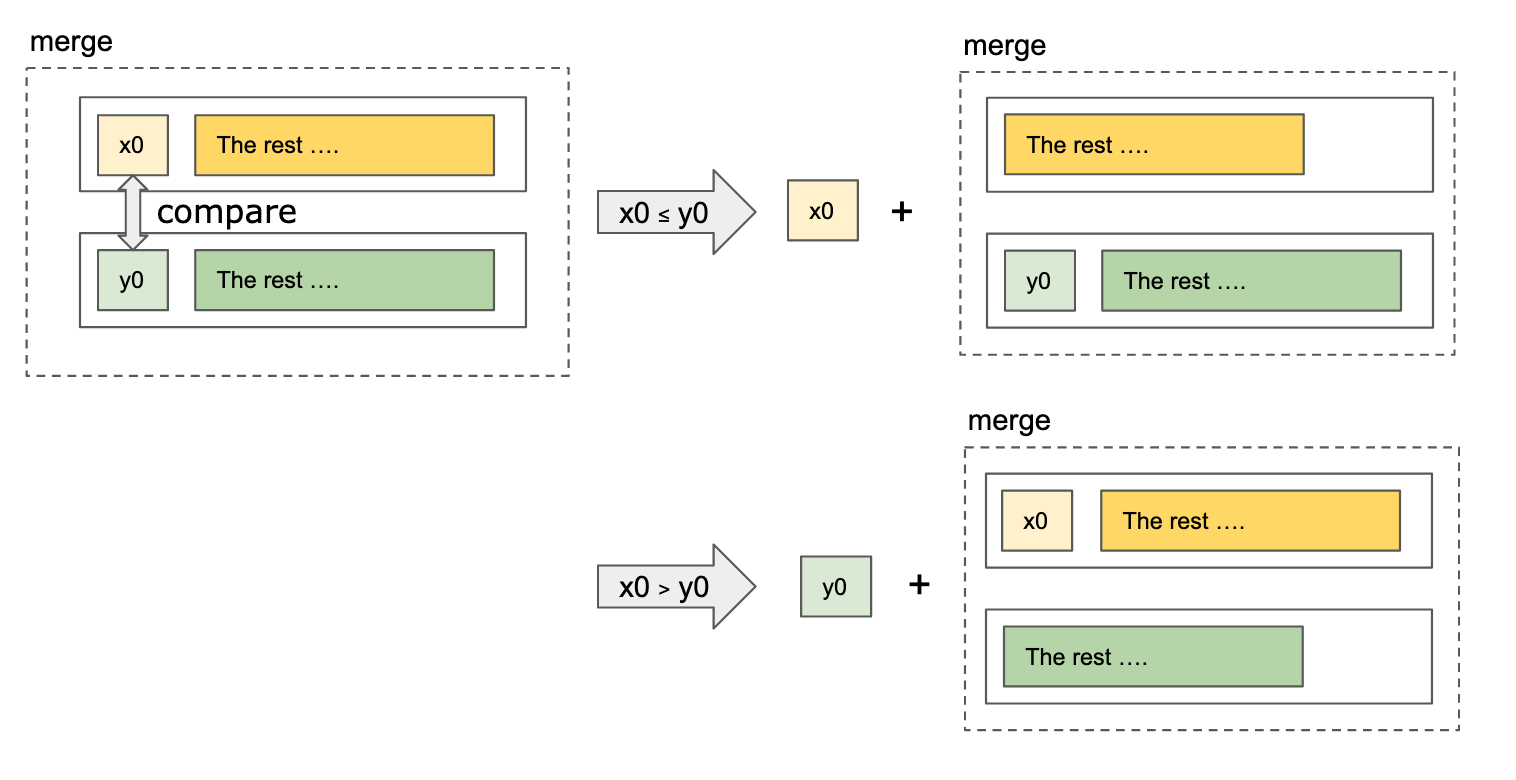
<p>Given 2 already sorted lists, compare only the first element from both lists. The smaller value got appended to the result. Repeat this process with that smaller value removed from consideration.</p>
<figure class="kg-card kg-image-card"><img src="/assets/images/ghost/2020/12/Screen-Shot-2020-12-05-at-7.16.44-AM.png" class="kg-image" alt="" loading="lazy" /></figure>
<pre><code class="language-hs">merge :: Ord a =&gt; [a] -&gt; [a] -&gt; [a]
merge [] [] = []
merge xs [] = xs
merge [] ys = ys
merge (x:xs) (y:ys) 
  | x &lt;= y    = x : merge xs (y:ys)
  | otherwise = y : merge (x:xs) ys</code></pre>
<p>The full merge sort algorithm simply halves a given unsorted list, recursive call to sort each half. Afterward, combining the two sorted halves with the merge algorithm defined above. </p>
<pre><code class="language-hs">split :: [a] -&gt; ([a], [a])
split [] = ([], [])
split xs = splitAt (length(xs) `div` 2) xs

mSort :: Ord a =&gt; [a] -&gt; [a]
mSort [] = []
mSort [x] = [x]
mSort xs = merge (mSort left) (mSort right)
  where 
    (left, right) = split xs</code></pre>
<h3 id="quicksort">Quicksort</h3>
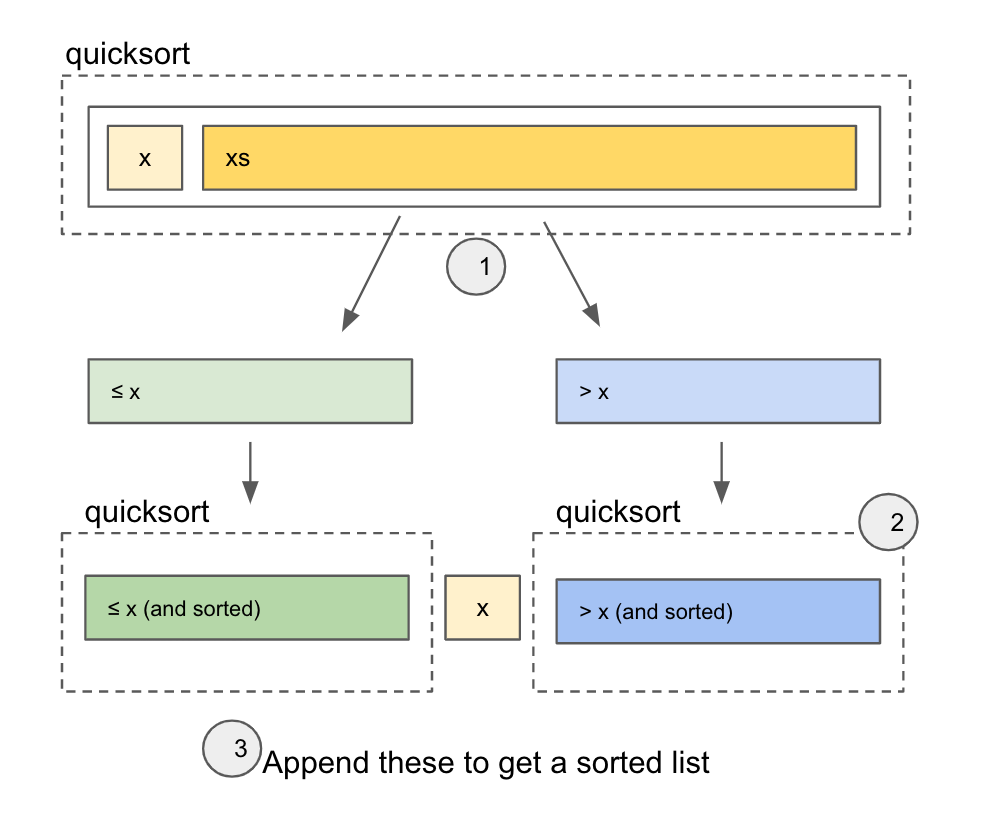
<p>Here is a classic intro in showing the expressive power of Haskell. </p>
<ol><li>Uses the first value <code>x</code> as a pivot point. Loop and separate values into <code>≤ x</code><strong> </strong>group and <code>&gt;x</code> group. </li><li>Recursively calls quick sort into the two groups</li><li>join the <code><code>≤ x</code></code>, <code>x</code>, and <code>&gt;x</code> group together</li></ol>
<figure class="kg-card kg-image-card"><img src="/assets/images/ghost/2020/12/Screen-Shot-2020-12-30-at-3.04.43-PM.png" class="kg-image" alt="" loading="lazy" /></figure>
<p>There's no guarantee that the two groups are partitioned into equal sizes. There exists a way to do quick sort in-place without additional memory, however.</p>
<pre><code class="language-hs">qSort :: Ord a =&gt; [a] -&gt; [a]
qSort [] = []
qSort (x:xs) = qSort(left) ++ [x] ++ qSort(right)
  where
      left  = [y | y &lt;- xs, y &lt;= x]
      right = [y | y &lt;- xs, y &gt;  x]</code></pre>
<h3 id="quadratic-time-sorting-algorithms">Quadratic time sorting algorithms</h3>
<p>Also known as O(n^2). These algorithms have a similar outline where the problem size is reduced by 1 per iteration of execution. Each iteration itself takes a linear time, making this O (n^2) in total.</p>
<h3 id="selection-sort">Selection Sort</h3>
<p>Finds a min value from a list, adds to answer, repeats on the remaining list excluding the selected min value.</p>
<pre><code class="language-hs">sSort :: Ord a =&gt; [a] -&gt; [a]
sSort [] = []
sSort xs = min : sSort(remaining)
  where min = minimum xs
        remaining = delete min xs</code></pre>
<h3 id="insertion-sort">Insertion Sort </h3>
<p>Maintain a sorted list (the answer), starting from empty. Insert a new value one element at a time from original lists at the right index in the sorted answer.</p>
<pre><code class="language-hs">orderedInsert :: Ord a =&gt; a -&gt; [a] -&gt; [a]
orderedInsert a [] = [a]
orderedInsert a (x:xs)
  | a &lt; x     = a:x:xs
  | otherwise = x:(orderedInsert a xs)

iSort :: Ord a =&gt; [a] -&gt; [a]
iSort [] = []
iSort (x:xs) = orderedInsert x (iSort xs)
</code></pre>
<h3 id="bubble-sort">Bubble Sort</h3>
<p>Closely related to selection sort. Instead of selecting a max value, bubbles the value as we compare each element.</p>
<pre><code class="language-hs">bSort :: Ord a =&gt; [a] -&gt; [a]
bSort [] = []
bSort xs = bSort(init bubbled) ++ [last bubbled]
  where
    bubbled = bubble xs

bubble :: Ord a =&gt; [a] -&gt; [a]
bubble [] = []
bubble [x] = [x]
bubble (x0:x1:xs)
  | x0 &lt; x1   = x0 : bubble( x1:xs )
  | otherwise = x1 : bubble( x0:xs )</code></pre>]]></content><author><name>Varokas Panusuwan</name></author><summary type="html"><![CDATA[High level review of classic sorting algorithms with Haskell. What do we mean by Sorted? For a sorted list, every element is smaller or equals to the next one. From this very definition we can check if a list is sorted by Checking that the first element is less than or equal to the next oneRecursively check that the rest is sorted isSorted [] = True isSorted [x] = True isSorted (x0:x1:xs) = (x0 &lt;= x1) &amp;&amp; isSorted(x1:xs) Recursive Sorting algorithms These sorting algorithms divide the given list into 2 subproblems of roughly the same size. There are two prominent algorithms in this category. Merge sort - uses a linear time algorithm to combine the two sorted listsQuick sort - uses a linear time algorithm to partition values into left (less than) and right (more than) a pivot. Merge Sort Given 2 already sorted lists, compare only the first element from both lists. The smaller value got appended to the result. Repeat this process with that smaller value removed from consideration. merge :: Ord a =&gt; [a] -&gt; [a] -&gt; [a] merge [] [] = [] merge xs [] = xs merge [] ys = ys merge (x:xs) (y:ys) | x &lt;= y = x : merge xs (y:ys) | otherwise = y : merge (x:xs) ys The full merge sort algorithm simply halves a given unsorted list, recursive call to sort each half. Afterward, combining the two sorted halves with the merge algorithm defined above. split :: [a] -&gt; ([a], [a]) split [] = ([], []) split xs = splitAt (length(xs) `div` 2) xs]]></summary></entry><entry><title type="html">Secrets in Code with Mozilla SOPS</title><link href="https://www.varokas.com/secrets-in-code-with-mozilla-sops/" rel="alternate" type="text/html" title="Secrets in Code with Mozilla SOPS" /><published>2020-05-25T14:17:07+07:00</published><updated>2020-05-25T14:17:07+07:00</updated><id>https://www.varokas.com/secrets-in-code-with-mozilla-sops</id><content type="html" xml:base="https://www.varokas.com/secrets-in-code-with-mozilla-sops/"><![CDATA[<p>Secrets presents a challenging dilemma for infrasture-as-a-code. Solution today converge mostly on storing these secrets in some external trusted system (Kube Secrets, Docker Secrets, Build System Secrest, Vault) outside of the code. </p>
<p>Using SOPS, we can check in the <strong>encrypted</strong> secrets (e.g. connection passwords) along with the code. The only thing out of sight is the encryption key wrapping these passwords. </p>
<p>The added value also is that SOPS understand structured file (JSON,YAML) and encrypt only values, leaving the keys intact to easily inspect.</p>
<p><strong>Example – </strong>This file could be checked into github along with the code.</p>
<pre><code class="language-javascript">{
  "postgres_password": "ENC[AES256_GCM,data:PsyN..,type:str]",
  "aws_access_key": "ENC[AES256_GCM,data:PsyN..,type:str]",
}</code></pre>
<figure class="kg-card kg-bookmark-card"><a class="kg-bookmark-container" href="https://github.com/mozilla/sops"><div class="kg-bookmark-content"><div class="kg-bookmark-title">mozilla/sops</div><div class="kg-bookmark-description">Simple and flexible tool for managing secrets. Contribute to mozilla/sops development by creating an account on GitHub.</div><div class="kg-bookmark-metadata"><img class="kg-bookmark-icon" src="https://github.githubassets.com/favicons/favicon.svg" alt="" /><span class="kg-bookmark-author">GitHub</span><span class="kg-bookmark-publisher">mozilla</span></div></div><div class="kg-bookmark-thumbnail"><img src="https://avatars0.githubusercontent.com/u/131524?s&#x3D;400&amp;v&#x3D;4" alt="" /></div></a></figure>
<h2 id="installation">Installation</h2>
<h3 id="macos">MacOS </h3>
<pre><code class="language-bash">$ brew install sops</code></pre>
<h3 id="windows">Windows</h3>
<ol><li>Go to the latest release page: <a href="https://github.com/mozilla/sops/releases/latest">https://github.com/mozilla/sops/releases/latest</a></li><li>Download <a href="https://github.com/mozilla/sops/releases/download/v3.5.0/sops-v3.5.0.exe" rel="nofollow">sops-v3.5.0.exe</a> (or whatever the latest version is)</li><li>Rename the file from <a href="https://github.com/mozilla/sops/releases/download/v3.5.0/sops-v3.5.0.exe" rel="nofollow"><code>sops-v3.5.0.exe</code></a> to just <code>sops.exe</code></li><li>Copy the file <code>sops.exe</code> to <code>C:\Windows\System32</code>. </li><li>Or – Alternately, put the file in any directory and set the Path environment variable accordingly</li></ol>
<h2 id="encryption-key-configuration">Encryption Key Configuration</h2>
<p>The most important configuration for SOPS is what encryption key to use. In many case this is the only configuration needed.</p>
<p>Create a <code>.sops.yaml</code> at the root directory of the project with one of the configuration outlined below. </p>
<p>The key could be any PGP key. Alternately the key could also be provided by a Key Management Service (KMS) in AWS or Google Cloud. A good choice especially if the code eventually would be deployed to these cloud providers. </p>
<h3 id="aws-kms">AWS KMS</h3>
<p>A master key can be created in hardware security modules via <a href="https://aws.amazon.com/kms/">AWS Key Management Service (KMS)</a>. We need <code>arn</code> of the key with a corresponding AWS Profile that has a permission to use the key.</p>
<pre><code class="language-bash">$ aws --profile myprofile configure
AWS Access Key ID [None]: KEY_ID
AWS Secret Access Key [None]: SECRET_ACCESS_KEY

# Create .sops.yaml At project root
$ vi .sops.yaml
creation_rules:
  # If assuming roles for another account use "arn+role_arn".
  # See Advanced usage
  - kms: "arn:aws:kms:..."
    aws_profile: myprofile</code></pre>
<p>The permission needed for key operations are:</p>
<pre><code class="language-json">"Action": [
  "kms:Encrypt",
  "kms:Decrypt",
  "kms:ReEncrypt*",
  "kms:GenerateDataKey*",
  "kms:DescribeKey"
],</code></pre>
<p>For slightly more advanced use cases. We could also access master key from another account using AWS AssumeRole mechanism. This is particularly useful when we have one master key in production, but wanted to also access it from our staging AWS account. See <a href="https://github.com/mozilla/sops#assuming-roles-and-using-kms-in-various-aws-accounts">https://github.com/mozilla/sops#assuming-roles-and-using-kms-in-various-aws-accounts</a></p>
<h3 id="pgp-optionally-via-keybase-">PGP (optionally via Keybase)</h3>
<p>For personal use cases, using a PGP key probably suffice. If you are a <a href="https://keybase.io">keybase</a> user, you already have a PGP key. We needed to do the followings</p>
<ol><li>Install GPG</li><li>Export private keys from Keybase </li><li>Import the keys to local machine</li><li>(optional) Remove passphrase from the key</li><li>Create <code>.sops.yaml</code> at the project</li></ol>
<pre><code class="language-bash">$ brew install gpg ## or apt install gpg 
$ gpg --import private_key.asc

... (take note of the key ID: 0701C740FB8D24E9)
...
gpg: key 0701C740FB8D24E9: secret key imported
...
...

# This is important for the passphrase screen to show up in console
$ export GPG_TTY=$(tty)
$ gpg --edit-key 0701C740FB8D24E9
gpg&gt; passwd
# 1. Type current passphrase
# 2. Type "" (Blank)
# 3. Type "" (Confirm Blank)

$ vi .sops.yaml
creation_rules:
  - pgp: 0701C740FB8D24E9</code></pre>
<h3 id="generate-new-gpg-key-and-export-">Generate new GPG Key (And export) </h3>
<p>Sometimes we want to generate and managed the GPG key without keybase</p>
<pre><code class="language-bash">$ gpg --full-generate-key

Kind of key : (1) RSA and RSA (default)
keysize: 3072
Key is valid for? : 0 (Do not expire)

Real name: &lt;name&gt;
Email: &lt;email&gt;
Comment: (blank)

Change (N)ame, (C)omment, (E)mail or (O)kay/(Q)uit? o

Enter Passphrase 2 times (cannot be blank)

public and secret key created and signed.

pub   rsa3072 2020-11-26 [SC]
      3F73E4821B848420CDEAEAD585E2DE2374D6377A  ---&gt; Note this value
uid                      test1 &lt;test1@test2.com&gt;
sub   rsa3072 2020-11-26 [E]

# Remove the passphrase if wanted
# This is important for the passphrase screen to show up in console
$ export GPG_TTY=$(tty)
$ gpg --edit-key 3F73E4821B848420CDEAEAD585E2DE2374D6377A
gpg&gt; passwd
# 1. Type current passphrase
# 2. Type "" (Blank)
# 3. Type "" (Confirm Blank)</code></pre>
<h2 id="encrypt-decrypt-files">Encrypt / Decrypt files</h2>
<h3 id="create">Create </h3>
<p>Create a new file via sops will launch an editor</p>
<pre><code class="language-bash">$ sops secret.enc.json
{
  "example_key": "example_value",
}</code></pre>
<p>The resulting json would retain the same keys, with values encrypted. An extra metadata is added as an extra key in JSON</p>
<pre><code class="language-bash">$ cat secret.enc.json                                                                                            
{
	"example_key": "ENC[AES256_GCM,data:PsyNr6jRJLIPN3P0tA==,iv:Ne63tk8f6uD9GLiHQoyrS/BrK4WL2I6+9Ul8nO6PkDw=,tag:rF8Hm4gm0+xlA3BqKivY7w==,type:str]",
	"sops": {
		...
        ... (metadata here)
	}
}%</code></pre>
<h3 id="edit">Edit</h3>
<p>Editing an existing files would launch and editor and encrypt the file.</p>
<pre><code class="language-bash">$ sops secret.enc.json</code></pre>
<h3 id="encrypt-decrypt-existing-files">Encrypt / Decrypt Existing Files</h3>
<pre><code class="language-bash">$ sops -e secret.json &gt; secret.sops.json

$ sops -d secret.sops.json &gt; secret.sops</code></pre>
<p>⚠️ <strong>Important</strong> - If the PGP key has passphrase, make sure this environment variables is set or you will run into problems </p>
<pre><code class="language-bash">GPG_TTY=$(tty)</code></pre>
<figure class="kg-card kg-bookmark-card"><a class="kg-bookmark-container" href="https://github.com/mozilla/sops/issues/304#issuecomment-377195341"><div class="kg-bookmark-content"><div class="kg-bookmark-title">Cannot decrypt with GPG 2.2.5 and SOPS 3.0.0 · Issue #304 · mozilla/sops</div><div class="kg-bookmark-description">It appears the utility is looking for a secret key in a file but my GPG installation (through macOS homebrew) uses the gpg-agent. I cannot decrypt files as demonstrated below. $ sops --version sops...</div><div class="kg-bookmark-metadata"><img class="kg-bookmark-icon" src="https://github.githubassets.com/favicons/favicon.svg" alt="" /><span class="kg-bookmark-author">GitHub</span><span class="kg-bookmark-publisher">mozilla</span></div></div><div class="kg-bookmark-thumbnail"><img src="https://avatars0.githubusercontent.com/u/131524?s&#x3D;400&amp;v&#x3D;4" alt="" /></div></a></figure>
<h2 id="integration-recipes">Integration Recipes</h2>
<p>Many tools provide a plugin to directly read and write encrypted SOPS file. </p>
<h3 id="terraform">Terraform</h3>
<p>Download the following provider plugin from github</p>
<figure class="kg-card kg-bookmark-card"><a class="kg-bookmark-container" href="https://github.com/carlpett/terraform-provider-sops"><div class="kg-bookmark-content"><div class="kg-bookmark-title">carlpett/terraform-provider-sops</div><div class="kg-bookmark-description">A Terraform provider for reading Mozilla sops files - carlpett/terraform-provider-sops</div><div class="kg-bookmark-metadata"><img class="kg-bookmark-icon" src="https://github.githubassets.com/favicons/favicon.svg" alt="" /><span class="kg-bookmark-author">GitHub</span><span class="kg-bookmark-publisher">carlpett</span></div></div><div class="kg-bookmark-thumbnail"><img src="https://avatars2.githubusercontent.com/u/214867?s&#x3D;400&amp;v&#x3D;4" alt="" /></div></a></figure>
<pre><code class="language-bash">$ mkdir -p ~/.terraform.d/plugins
$ curl -L -o ~/.terraform.d/plugins/terraform-provider-sops_v0.5.0_darwin_amd64.zip \
"https://github.com/carlpett/terraform-provider-sops/releases/download/v0.5.0/terraform-provider-sops_v0.5.0_darwin_amd64.zip"

$ unzip ~/.terraform.d/plugins/terraform-provider-sops_v0.5.0_darwin_amd64.zip \
-d ~/.terraform.d/plugins

$ terraform init</code></pre>
<p>Then we could define a <code>data</code> resource that automatically decrypt SOPS json.</p>
<pre><code class="language-bash">provider "sops" {}

data "sops_file" "secrets" {
  source_file = "secrets.enc.json"
}

## Using
provider "aws" {
  region = "us-west-2"
  access_key = data.sops_file.secrets.data["aws_access_key"]
  secret_key = data.sops_file.secrets.data["aws_secret_key"]
}</code></pre>
<h3 id="encrypted-private-keys">Encrypted Private Keys</h3>
<p>SOPs works with any unstrutured files as well. The data will get encoded into a <code>data</code> key in a resulting json automatically.</p>
<pre><code class="language-bash">$ sops -e private_key &gt; private_key.sops
$ cat private_key.sops
{
  "data": "ENC[AES256_GCM,data:bVr....."
  "sops:: { ... }
}
$ rm private_key</code></pre>
<p>Using the keys, we could just pipe the decrypted result to <code>ssh-add</code> without writing to file first.</p>
<pre><code class="language-bash">ssh-add - &lt;&lt;&lt; $(sops -d private_key.sops)</code></pre>
<h3 id="python-script">Python Script</h3>
<p>SOPS used to be written in python, but reimplemented in golang. The pip package exists but with many features missing. It is probably better to call it via subprocess.</p>
<pre><code class="language-python">import subprocess
b = subprocess.check_output(['sops', "-d", "private_key.sops"])</code></pre>
<h3 id="kubernetes-secrets">Kubernetes Secrets</h3>
<p>Create a new yaml file, but indicates to SOPs that only <code>data</code> and <code>stringData</code> are keys to encrypt</p>
<pre><code class="language-bash">$ sops --encrypted-regex '^(data|stringData)$' secrets-mysecret.yaml

apiVersion: v1
kind: Secret
metadata:
    name: mysecret
type: Opaque
stringData:
  mySecret: hello123</code></pre>
<p>Apply by pipe the decrypted output to K8s</p>
<pre><code class="language-bash">sops -d secrets-mysecret.yaml | kubectl -n workflow apply -f -</code></pre>]]></content><author><name>Varokas Panusuwan</name></author><summary type="html"><![CDATA[Secrets presents a challenging dilemma for infrasture-as-a-code. Solution today converge mostly on storing these secrets in some external trusted system (Kube Secrets, Docker Secrets, Build System Secrest, Vault) outside of the code. Using SOPS, we can check in the encrypted secrets (e.g. connection passwords) along with the code. The only thing out of sight is the encryption key wrapping these passwords. The added value also is that SOPS understand structured file (JSON,YAML) and encrypt only values, leaving the keys intact to easily inspect. Example – This file could be checked into github along with the code. { "postgres_password": "ENC[AES256_GCM,data:PsyN..,type:str]", "aws_access_key": "ENC[AES256_GCM,data:PsyN..,type:str]", } mozilla/sopsSimple and flexible tool for managing secrets. Contribute to mozilla/sops development by creating an account on GitHub.GitHubmozilla Installation MacOS $ brew install sops Windows Go to the latest release page: https://github.com/mozilla/sops/releases/latestDownload sops-v3.5.0.exe (or whatever the latest version is)Rename the file from sops-v3.5.0.exe to just sops.exeCopy the file sops.exe to C:\Windows\System32. Or – Alternately, put the file in any directory and set the Path environment variable accordingly Encryption Key Configuration The most important configuration for SOPS is what encryption key to use. In many case this is the only configuration needed. Create a .sops.yaml at the root directory of the project with one of the configuration outlined below. The key could be any PGP key. Alternately the key could also be provided by a Key Management Service (KMS) in AWS or Google Cloud. A good choice especially if the code eventually would be deployed to these cloud providers. AWS KMS A master key can be created in hardware security modules via AWS Key Management Service (KMS). We need arn of the key with a corresponding AWS Profile that has a permission to use the key. $ aws --profile myprofile configure AWS Access Key ID [None]: KEY_ID AWS Secret Access Key [None]: SECRET_ACCESS_KEY]]></summary></entry><entry><title type="html">Self Hosted Ghost Blog setup with Docker</title><link href="https://www.varokas.com/self-hosted-ghost-docker/" rel="alternate" type="text/html" title="Self Hosted Ghost Blog setup with Docker" /><published>2020-04-20T07:29:16+07:00</published><updated>2020-04-20T07:29:16+07:00</updated><id>https://www.varokas.com/self-hosted-ghost-docker</id><content type="html" xml:base="https://www.varokas.com/self-hosted-ghost-docker/"><![CDATA[<p>Just recently updated this blog itself to latest version of Ghost running via <code>docker-compose</code>. The blog itself is TLS enabled and backed up the content to S3 periodically. This is my public note on how. In case anybody would find it useful.</p>
<p>Ghost<a href="https://hub.docker.com/_/ghost"> docker hub page</a> is a great place to get started. I added to it to get what I needed. Namely a backup and TLS proxy.</p>
<h3 id="the-server">The server</h3>
<p>The example used here are based on Ubuntu 18.04. We also needed to install docker on the host. The steps are detailed in the excellent guide below.</p>
<figure class="kg-card kg-bookmark-card"><a class="kg-bookmark-container" href="https://www.digitalocean.com/community/tutorials/how-to-install-and-use-docker-on-ubuntu-18-04"><div class="kg-bookmark-content"><div class="kg-bookmark-title">How To Install and Use Docker on Ubuntu 18.04 | DigitalOcean</div><div class="kg-bookmark-description">Docker is an application that simplifies the process of managing application processes in containers. In this tutorial, you’ll install and use Docker Community Edition (CE) on Ubuntu 18.04. You’ll install Docker itself, work with containers and images, and push an image to a Docker Repository.</div><div class="kg-bookmark-metadata"><img class="kg-bookmark-icon" src="https://www.digitalocean.com/assets/community/android-icon-192x192-4d13e6664f412f6904a78be76d626004bcbbd59671f6c755919628134003c2a8.png" alt="" /><span class="kg-bookmark-author">DigitalOcean</span><span class="kg-bookmark-publisher">Brian Hogan</span></div></div><div class="kg-bookmark-thumbnail"><img src="https://community-cdn-digitalocean-com.global.ssl.fastly.net/assets/tutorials/images/large/Docker_Install_mostov_twitter-_-facebook-2.png?1530826049" alt="" /></div></a></figure>
<p>Make sure to open firewall on port <code>80</code> and <code>443</code>. Port 80 won't be doing much, just a redirect to <code>443</code>.</p>
<h3 id="the-services">The services</h3>
<p>The <code>docker-compose.yml</code> file below has 3 services</p>
<p><strong>ghost</strong> – This is the ghost server itself. Runing on port 2368. Mounted the content directory (mainly images) to the host <code>/var/lib/ghost/content</code>. </p>
<p><strong>db</strong> – The mariadb server that ghost server writes to. Change <code>MYSQL_ROOT_PASSWORD</code> to match what ghost server expects</p>
<p><strong>caddy</strong> - Our TLS proxy from outside world to our ghost server. This is a much easier route compared to fiddling with nginx and certbot. Make sure to put <code>Caddyfile</code> in <code>/home/ubuntu/caddy/config/Caddyfile</code> to configure the domain name and reverse proxy port correct.</p>
<!--kg-card-begin: html-->
<script src="https://gist.github.com/varokas/3cf7d11040f0e0b5457358d246c2c004.js"></script>
<!--kg-card-end: html-->
<h3 id="backup-script">Backup Script</h3>
<p>The script tar-up a mounted content directory and calls to MySQL to dump a database. Then it proceeds to upload the result file to S3. </p>
<p>The script assumes there's an <code>aws-cli</code> installed with a profile called <code>backup</code> set up. On Ubuntu this could be as simple as. </p>
<pre><code class="language-bash">$ sudo apt-get install awscli
$ aws configure --profile backup

AWS Access Key ID [None]: &lt;keyname&gt;
AWS Secret Access Key [None]: &lt;secret&gt;
Default region name [None]: &lt;region&gt;
Default output format [None]: yaml</code></pre>
<p>Then put this script in <code>/home/ubuntu/daily_backup.sh</code></p>
<!--kg-card-begin: html-->
<script src="https://gist.github.com/varokas/985f736d4802db855f9d5f1376d125b6.js"></script>
<!--kg-card-end: html-->
<h3 id="compared-to-previous-method">Compared to previous method</h3>
<p>The site used to be created via <a href="https://marketplace.digitalocean.com/apps/ghost">Digital Ocean Marketplace</a>. Although simple and very easy to get started, I was stuck at the (rather old) version. Ghost is still very much in active development. Updating ghost sometimes means update version of NodeJS which may not be as simple when your base OS gets older.</p>]]></content><author><name>Varokas Panusuwan</name></author><summary type="html"><![CDATA[How to set up a self-hosted ghost blog with docker, mysql, TLS, and backup script.]]></summary></entry></feed>